

You don’t need to study prompt engineering to get more out of AI. You need a few specific moves that turn a chatbot from a novelty into something you reach for every day.
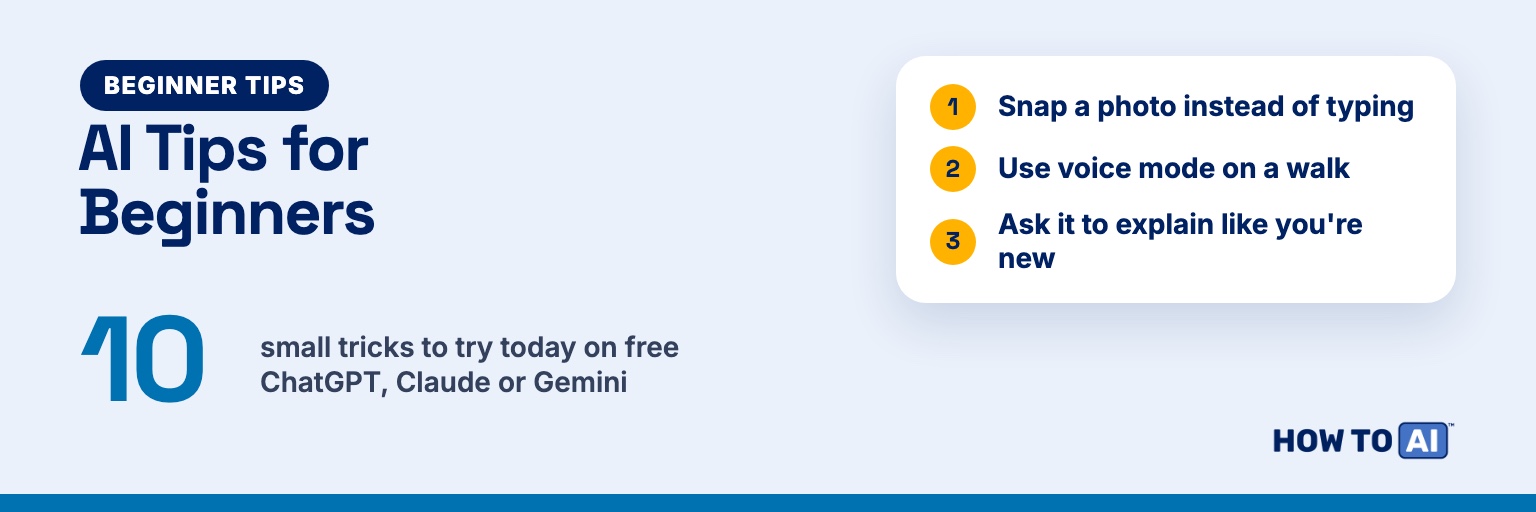
These 10 AI tips and tricks are small and concrete, and you can try every one of them today on the free version of ChatGPT, Claude, or Gemini (usage limits apply). If you want the bigger-picture habits behind them, read how to use AI effectively next.
1. Snap a photo instead of typing it out
A menu in another language, a confusing form, a receipt, a parking sign, an error message on your screen. Take a picture and ask about it. ChatGPT’s and Gemini’s free plans both let you add images to a chat.
Here's a photo of a restaurant menu. I'm vegetarian and don't like spicy food. Which 3 dishes should I look at, and what should I ask the server? Translate anything that isn't in English.Other quick wins: a receipt (“Split this between three people, and I didn’t have the dessert”), a form (“Explain each field in plain English and tell me which ones are optional”), or a screenshot of an error message. Crop to what matters, and cover account numbers or ID numbers before you upload.
2. Use voice mode for a walk-and-talk
Some of the best AI sessions happen away from a keyboard. Start voice mode, put your phone in your pocket, and think out loud on a walk. ChatGPT Voice, Claude’s voice mode, and Gemini Live are all on the free plans, with limits.
In ChatGPT, turn on Background conversations under Settings, then Voice, and the conversation keeps going while you use other apps or your screen is locked. When you finish, the transcript is added to the chat so you can pick it up in text later.
I'm going to think out loud about whether to take on a freelance project. Ask me one question at a time. When I say "wrap it up," give me a short summary of what I said and which way I seem to be leaning.More on why this works in why voice gets you better answers.
3. Say “explain it like I’m new to this”
AI will happily answer at an expert level unless you set the level yourself. One sentence fixes it, and a quiz at the end tells you whether it stuck.
I'm new to this. Explain [topic] in plain English with one everyday analogy. Then give me the 3 terms I'll hear most and what each means. Finish with 3 quick questions to check that I understood.Keep our plain-English AI glossary open for the AI terms themselves.
4. Set your preferences once
If you keep typing “keep it short” or “I’m in the US,” put it in your personalization settings instead. The AI then applies it to every chat.
- ChatGPT: Settings, then Personalization, then Custom Instructions (Settings, then Customize ChatGPT on mobile). Free and Go users get up to 1,500 characters.
- Claude: Settings, then Instructions for Claude.
- Gemini: Settings & help, then Personal Intelligence, then Instructions for Gemini. You need to be signed in with a personal Google Account.
I'm a [job] in [city, country]. I'm not technical. Lead with the answer, then give up to 5 bullets. Use plain English. If you're unsure about a fact, say so. If my request is vague, ask one clarifying question before answering.If your AI seems to forget you anyway, here’s why that happens.
5. Give each ongoing thing its own project
A job search, a kitchen remodel, or a class you’re taking shouldn’t live in one endless chat. Projects keep related chats, files, and instructions together.
- ChatGPT Projects are on the free plan (up to 5 files per project). Project instructions apply only inside that project and override your general custom instructions.
- Claude lets free accounts create up to five projects.
- Gemini has Gems, saved helpers with their own instructions, on the free plan.
Try it: create a project called “Job search,” upload your résumé, and add this instruction: “You’re my job-search coach. Tailor all advice to the résumé in this project. Keep answers under 200 words.”
6. Ask for a table
Whenever you’re comparing or tracking things, ask for a table. It forces the AI to be specific, and you can paste the result straight into Google Sheets or Excel.
Put these three phone plans in a table with columns: Plan, Monthly cost, Data, Contract length, Hidden fees, Deal-breakers. Then add one row at the bottom with your pick for a light user and why.

[paste plan details]It works for meal plans with a grocery column, apartment hunting, and packing lists by day. For bigger data, see how to make spreadsheets talk to you.
7. Make it write like you
AI’s default voice is polite and bland. Show it how you actually write, and ask it to describe your style before it copies it.
Here are three emails I wrote. Describe my writing style in 5 bullets (length, tone, greetings, sign-offs, quirks). Then rewrite the draft below in that style, keeping my usual length.

Emails:
[paste 3 emails]

Draft:
[paste draft]Pro move: paste those 5 style bullets into your personalization settings from trick 4 so you only do this once.
8. Turn a messy note into a checklist
Voice memos, scribbled notes, and long email threads are where tasks go to hide. Paste the mess and ask for order.
Turn this into a checklist grouped by where I'll do each task (home, phone calls, errands, online). Put anything with a deadline at the top with its date. Don't add tasks I didn't mention.

[paste notes]That last line matters. Without it, AI sometimes adds “helpful” steps you never asked for.
9. Have it compare two options side by side
When you’ve narrowed a decision to two choices, like two job offers, two laptops, or two daycares, tell the AI what matters to you and ask what would change its answer.
I'm choosing between [option A] and [option B]. What matters most to me: [1], [2], [3]. Compare them on those three things only. Tell me what information I'm missing, which one you'd choose, and what would change your mind.Chatbots can be out of date on prices and specs, so check those numbers on the seller’s own page before you decide.
10. End with “What am I missing?”
This is the most useful follow-up there is. After any plan, email, budget, or decision, ask it before you act.
What am I missing? List the 3 biggest gaps or risks in this, most important first, and suggest a fix for each.Variations: “What would a skeptical boss ask?” or “What’s most likely to go wrong first?”
Mistakes beginners make with these tricks
- Uploading photos with personal details showing. Crop or cover account numbers, addresses, and faces that don’t need to be there.
- Setting preferences and forgetting them. They apply to every chat, so an old instruction like “always be brief” can quietly shorten answers you wanted long. Review them now and then.
- Trusting the table. A neat table can still contain wrong numbers. Check the figures that drive your decision.
- Living in one giant chat. Use projects for ongoing work and fresh chats for new topics.
Try it now
Pick two tricks and do them in the next ten minutes. Set your preferences once (trick 4), then paste something you wrote today and ask “What am I missing?” (trick 10). You’ll feel the difference on your very next chat.
🎁 Free download: The Paste-In Prompt Pack
Three full-length, copy-ready prompts plus a one-line note on which one to use when, in a single Notion page you can keep on your phone. Works with ChatGPT, Claude, or Gemini. Free.
Related guides
- The 6 AI Prompts I Use Most
- 10 Things You Can Do With AI That Have Nothing to Do With Work
- How to Use ChatGPT: A Beginner’s Guide
- AI does THAT?
- I Stopped Typing to My AI — Voice Gets You Better Answers (Free Kit)
Frequently asked questions
Do these AI tricks work on free plans?
Yes. Every trick here works on the free versions of ChatGPT, Claude, or Gemini as of September 2026, though free plans have usage limits on things like photo uploads and voice. Feature names and limits change, so check your app's settings if something looks different.
Which AI trick should a beginner learn first?
Setting your preferences once in custom instructions (or the Claude and Gemini equivalents). It takes five minutes and improves every chat after that. The second is simply asking "What am I missing?" after any plan or draft.
Is it safe to upload photos of receipts and forms to AI?
It can be, if you remove what doesn't need to be there. Crop the image and cover account numbers, ID numbers, and addresses before uploading, and check each tool's privacy settings for whether your chats are used to train its models.
How do I make AI sound less generic?
Show it your own writing. Paste two or three things you wrote, ask it to describe your style in a few bullets, and then ask it to rewrite drafts in that style. Save the style notes in your personalization settings so you don't repeat the step.