

Using AI in 2026 mostly means one thing: typing (or talking) to a chatbot like ChatGPT, Claude or Gemini, the way you’d message a knowledgeable friend. You don’t need to code, buy anything, or understand how it works under the hood. You need a free account and a few good habits.
This guide covers it all, in order: picking a free tool, your first conversation, how to ask well, everyday prompts to copy, voice and photos, checking answers, privacy, and a seven-day plan to make it stick.
What AI chatbots are, in plain words
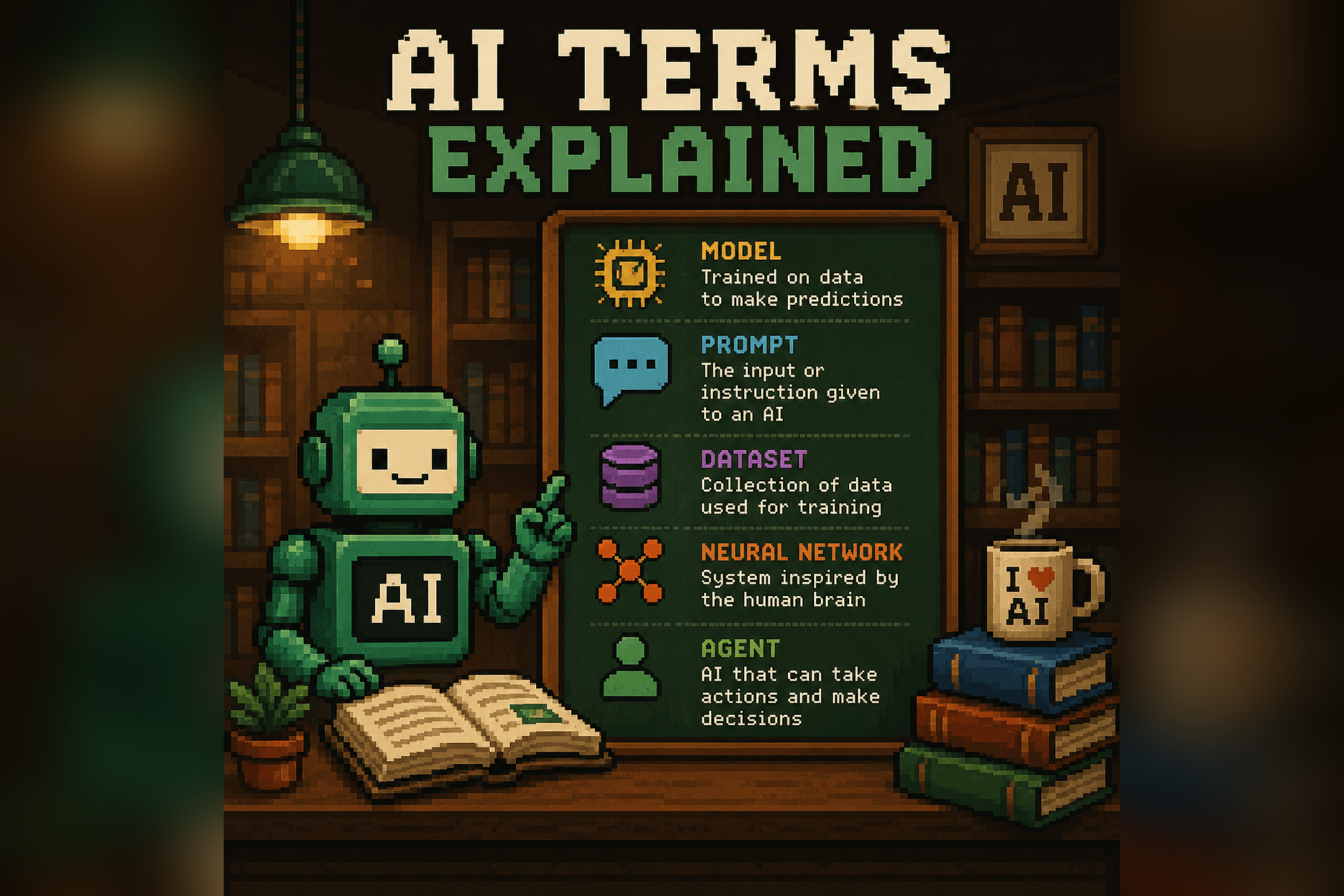
An AI chatbot is a program trained on an enormous amount of text. When you send it a message, it predicts a helpful reply, a few words at a time. That’s why it’s so good with language: drafting, rewriting, summarizing, explaining and brainstorming.
It is not a person, and it is not a database of checked facts. It can write a confident paragraph that’s partly wrong. Treat it like a fast, well-read assistant on their first day: great for first drafts and explanations, not the final word on anything important. For the longer version, see how AI chatbots really work.
| Usually great at | Be careful with |
|---|---|
| First drafts of emails, posts and letters | Facts, dates, statistics and quotes |
| Explaining a topic at your level | Medical, legal and money decisions |
| Summarizing long text you give it | Recent news, unless it searches the web |
| Brainstorming options and ideas | Exact math on big or messy numbers |
| Reformatting notes into lists, tables and checklists | Anything where one wrong detail costs you |
Step 1: Pick one free AI tool and sign up
Three general-purpose assistants cover almost everything a beginner needs, and all three have free plans. Here’s what each offered on its free plan as of September 2026, according to the companies’ own pricing and help pages:
| Tool | Where to use it | On the free plan | How you sign in |
|---|---|---|---|
| ChatGPT (OpenAI) | chatgpt.com, plus apps for iPhone, Android, Mac and Windows | Everyday text chat, web search, photo and file uploads, voice chats and image creation, with limits on the extras | Email, or a Google, Microsoft or Apple account. You can try it before making an account. |
| Claude (Anthropic) | claude.ai, plus apps for Mac, Windows, iPhone and Android | Chat, web search, file uploads and file creation, memory and voice mode, with a usage limit that resets every five hours | Email address. You must be 18 or older. |
| Gemini (Google) | gemini.google.com, plus the Gemini app for Android and iPhone | Chat, image generation and editing, Deep Research, and Gemini Live voice chats; file uploads once you sign in | A personal Google account. A few features work without signing in. |
Which one should you choose?
- You already use a Google account every day? Start with Gemini. You’re basically signed in already.
- You want to follow along with most online tutorials? ChatGPT is the one they usually show.
- You write a lot, or the others’ drafts feel stiff to you? Try Claude (if you’re 18 or older).
Honestly, any of the three is fine. Using one daily matters far more than which one you pick, so choose one and stay with it for a week. (Grok also has a free tier at grok.com if you get curious later.) For a side-by-side, read ChatGPT vs Claude vs Gemini.
Signing up takes about two minutes:
- Go to the official site (chatgpt.com, claude.ai or gemini.google.com) or install the official app. Check that the developer is OpenAI, Anthropic or Google.
- Create an account with your email (or a Google, Microsoft or Apple login where offered) and confirm the code they send.
- You’ll land on a mostly empty screen with a message box at the bottom. That box is where everything happens.
- Optional but smart: glance at the privacy settings now (see below).
Step 2: Have your first conversation
Type in the box as if you were texting a smart friend. Full sentences help; typos don’t matter much. The reply appears within seconds.
The key idea: this is a conversation, not a search box. You can reply to what it said, ask it to change something, or push back. Everything inside one chat stays in view, so you don’t need to repeat yourself. A new chat gives you a clean slate for a new topic. Some tools also remember a few details between chats; you can manage that in settings.
A strong first prompt makes the AI figure out where it can help you:
I'm new to AI and want to find out where you can actually help me. Ask me five quick questions about my job, my week and the tasks I find tedious. Ask them one at a time and wait for my answer. After my fifth answer, suggest five specific tasks you could help with, each with an example of exactly what I would type.Want a minute-by-minute walkthrough of your very first session? Follow the 10-minute AI tutorial for beginners.
Step 3: Learn how to ask (context, task, format, follow up)
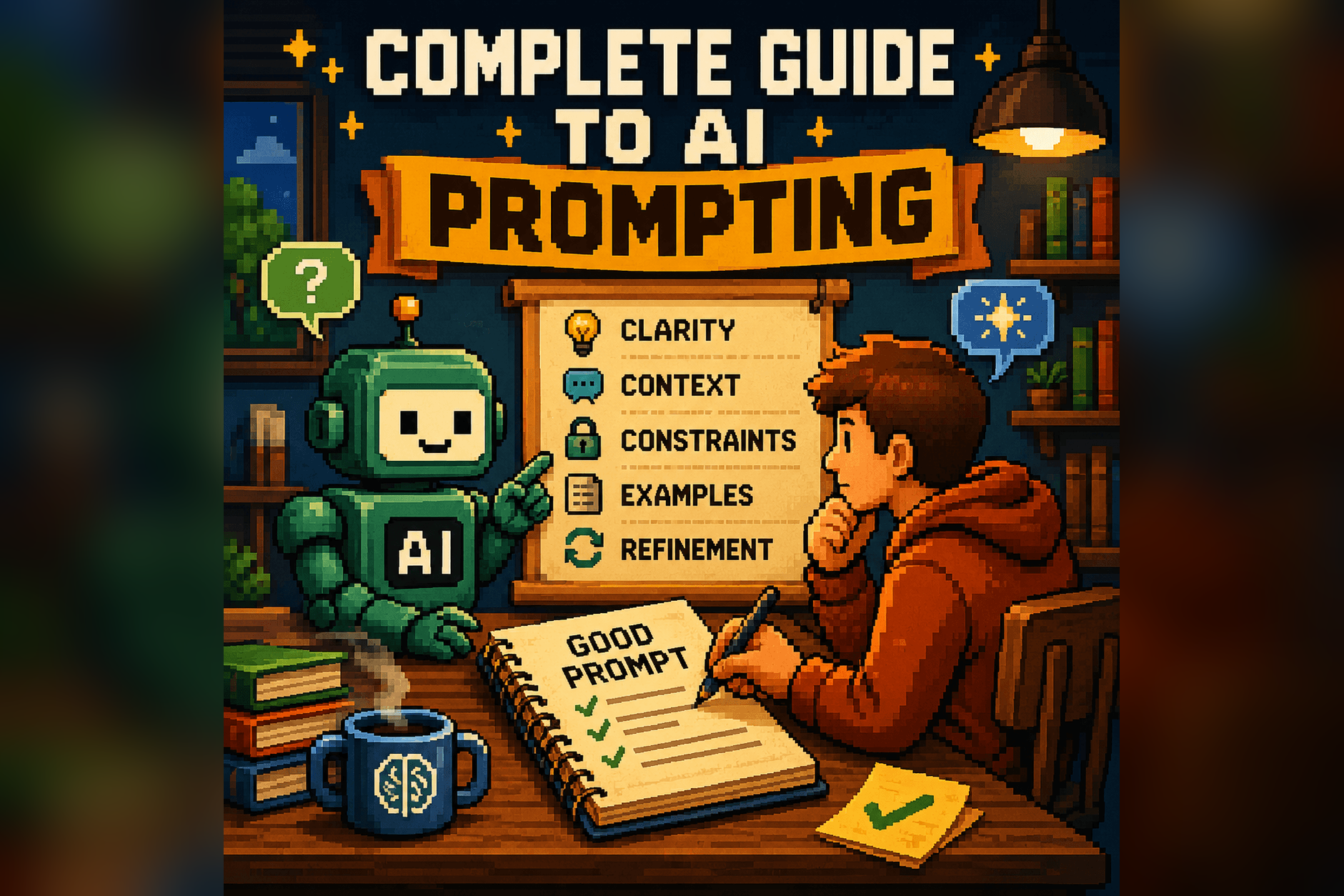
Most disappointing AI answers come from short, vague requests. “Write an email to my landlord” gets you a bland email that could be from anyone. Give the AI what a human assistant would need, in four parts:
- Context: who you are and what’s going on. “I rent an apartment, the heater has been broken for nine days, and I’ve emailed twice.”
- Task: exactly what you want. “Write a polite but firm follow-up asking for a repair date.”
- Format: length, structure and tone. “Under 120 words, no exclamation marks, end with one clear request.”
- Follow up: treat the first answer as a draft and steer it.
Put together, it looks like this:
Context: I rent an apartment. The heater has been broken for nine days, and I've emailed my landlord twice with no reply.
Task: Write a follow-up email asking for a firm repair date.
Format: Under 120 words. Polite but firm. No exclamation marks. End with one clear request and a reply deadline of this Friday.Then use follow-ups instead of starting over. These work in any tool:
- “Make it shorter.” / “Make it warmer.” / “Sound less formal.”
- “Give me three different versions so I can pick one.”
- “What’s missing or unclear in this?”
- “Before you answer, ask me any questions you need.”
You won’t need to label the parts forever. Once it’s a habit, a request like “I’m a nurse on night shifts; plan five easy dinners I can prep on Sunday, as a shopping list grouped by aisle” already has context, task and format built in.
Everyday ways to use AI, with prompts to copy
The best first uses are small, real tasks you already do. Here are ideas for four areas of life, each with one prompt to paste in. Replace anything in [brackets] with your details.
At work
- Draft or reply to emails, including the awkward ones
- Turn rough meeting notes into minutes with action items
- Shrink a long document or report into a one-page summary
- Draft LinkedIn posts, product blurbs and other short marketing copy
- Build checklists and step-by-step processes, like onboarding a new hire
- Explain data you paste in, or suggest the spreadsheet formula you need
- Write or fix short bits of code
Here are my rough notes from today's meeting: [paste notes]
Turn them into meeting minutes with three sections: decisions made, action items (with owner and due date if mentioned), and open questions. Use short bullet points. If an owner or date is missing, write "TBD" instead of guessing.For dozens more, grab these copy-paste AI prompts for work. One rule first: check your employer’s AI policy before you paste in company material.
At home
- Plan meals around what’s already in the fridge
- Plan a trip, a party or a packed weekend
- Draft a complaint, a thank-you note or a tricky text
- Get step-by-step help with a repair or a new gadget
I have these ingredients: [list what's in your fridge and cupboard]. I have 30 minutes and basic kitchen tools. Suggest three dinners I can make tonight, mostly from what I have. For each one, list any missing ingredients and give short step-by-step instructions.Learning something new
- Get a plain-English explanation of anything, pitched at your level
- Have it quiz you before a test or an interview
- Build a study plan for a skill, a language or a certification
Explain [topic] to me as if I'm a smart adult with no background in it. Use one everyday analogy and keep it under 200 words. Then ask me three questions to check I understood, one at a time, and tell me what I got right or wrong after each answer.Money
- Sort a month of spending into categories and spot the leaks
- Compare two options side by side, like phone plans or subscriptions
- Understand a confusing bill, statement or contract clause
- Draft a script for calling to cancel or lower a bill
Here is last month's spending, one item per line, with no account numbers: [paste list]
Group it into categories, total each category, and show the result as a table. Then point out the three categories where I could most realistically cut back, with one specific idea for each. Don't give investment advice.AI can organize and explain, but it isn’t a licensed financial advisor. Recheck its math before you act on it. The same goes for health and legal questions: use AI to understand your situation and prepare better questions, then talk to a professional.
Talk to it out loud, and show it photos
Typing is optional. All three tools offer spoken conversations on their free plans, with limits: ChatGPT Voice, Claude’s voice mode (still labeled beta) and Gemini Live in the Gemini mobile app. Tap the microphone or voice icon near the message box and just talk.
Voice is great for thinking out loud. Ramble about a decision or a problem, then ask the AI to organize what you said into a list or a next step. Speaking usually means more detail, and detail is what makes answers better.
You can also attach photos and documents with the + or paperclip icon, then ask about them. Free plans cap uploads, so save them for things that matter. A few ideas:
- A confusing letter, form or bill: “What is this asking me to do, and by when?”
- A menu or sign in another language: “Translate this and flag anything spicy.”
- A PDF you don’t have time to read: “Summarize the five points that matter most to me as a [your role].”
[Attach a photo of the letter or form]
I've attached a photo of a letter I received. In plain English: what is it, what do they want me to do, what's the deadline, and what happens if I ignore it? If any part of the image is hard to read, say so instead of guessing.Before you snap the photo, crop out or cover anything private, like account numbers or another person’s details.
How to check AI answers and catch made-up facts
AI chatbots sometimes give confident answers that are simply wrong. This is called a hallucination. OpenAI’s own help center lists the usual forms: incorrect facts or dates, made-up quotes, studies or citations, and overconfident answers to fuzzy questions. Every chatbot can do it, free or paid.
Match your checking to the stakes:
- Low stakes (a birthday poem, dinner ideas): read it and use it.
- Medium stakes (an email to your boss, a summary you’ll share): read every line before sending, and check names, numbers and dates against your source.
- High stakes (health, money, legal, anything you’ll publish): confirm each key fact on an original source, such as the official website, the document itself or a professional.
Three habits catch most problems:
- Ask for sources, then click them. A link that doesn’t exist, or doesn’t say what the AI claimed, is a red flag.
- Use web search for anything recent. Prices, news, opening hours and rules change; ask the tool to search the web and cite what it found.
- Ask it to check itself with the prompt below.
Review your last answer. List every specific fact, number, date, name or quote in it. For each one, rate your confidence as high, medium or low, and briefly explain why. Mark anything I should verify before relying on it.A self-check isn’t proof, since the AI can be wrong about itself too, but it points you at the shaky parts fast. For the reasons behind all this, read why AI makes things up.
What not to paste into an AI chatbot
Treat a chatbot like an email to a company you don’t know well. Depending on your settings, conversations may be stored, used to improve the models and, in some cases, read by human reviewers. Google’s Gemini privacy page says it plainly: don’t enter confidential information you wouldn’t want a reviewer to see.
Keep these out:
- Passwords, security codes and PINs
- Full card, bank account or Social Security numbers
- Medical records, yours or anyone else’s
- Confidential work documents, unless your employer has approved the tool
- Other people’s private details, like addresses, phone numbers or private messages
An easy workaround: swap real details for placeholders. “Client A”, “[my address]” and rounded numbers get you the same quality of help.
Then spend two minutes in settings:
- ChatGPT: go to Settings, then Data Controls, and turn off “Improve the model for everyone.” For a one-off sensitive chat, use a Temporary Chat: it isn’t used for training, isn’t saved to your history, and is deleted after 30 days.
- Claude: review the model-improvement option in your privacy settings. Incognito chats aren’t used to improve Claude, even if that option is on.
- Gemini: turn off Keep Activity in Gemini Apps Activity to stop future chats being reviewed to improve Google’s services, or use a temporary chat.
Free vs paid: do you need to pay for AI?
Not to start. The free plans handle everything in this guide. Paying mostly buys higher limits, stronger models and extra features. As of September 2026, the main individual plans cost:
| Plan | US price | What you get over free |
|---|---|---|
| ChatGPT Plus | $20/month | Higher message and upload limits, advanced reasoning models, more deep research, projects |
| Claude Pro | $20/month, or $17/month billed annually | More usage, more Claude models, Research, Claude Code |
| Google AI Pro | $19.99/month | Higher Gemini limits, Gemini in Gmail and Docs, 5 TB of storage |
Cheaper tiers exist too, such as ChatGPT Go and Google AI Plus, and prices vary by country. Check the official pages before you buy: Claude pricing and Google AI plans list current prices, and ChatGPT shows its plans at chatgpt.com/pricing.
A simple rule: upgrade only when you keep hitting a limit on work that matters to you, and only for the one tool you use most.
Common beginner mistakes to avoid
- Tool-hopping. Switching tools every day spreads your learning thin. Get comfortable with one first.
- One-line prompts for everything. Short and vague in, generic out. Add context.
- Taking the first answer. The first reply is a draft. Round two is where it gets good.
- Trusting it blindly. Confident isn’t the same as correct. Verify what matters.
- One endless chat. Very long conversations can drift off course. Start a new chat for a new topic.
- Waiting to feel ready. Nobody learns this by reading about it. Ten minutes of use beats an hour of articles.
A simple 7-day plan to build the habit
- Day 1: Sign up and run the “ask me five questions” prompt above.
- Day 2: Rewrite one real email or message you’ve been putting off.
- Day 3: Paste in something long (an article, a policy, some terms and conditions) and get a five-bullet summary.
- Day 4: Plan something: a week of meals, a trip or a budget.
- Day 5: Learn a topic, have it quiz you, then fact-check one claim.
- Day 6: Use your voice or a photo instead of typing.
- Day 7: Save your three best prompts in a note on your phone. That note becomes your personal toolkit.
Each day takes about 15 minutes. For the full version with a ready-made prompt for every day, follow your first week with AI.
Try it now
Open ChatGPT, Claude or Gemini in a new tab and paste this in. Fill in the brackets with something real from your week:
I'm a beginner with AI. Here's one task on my plate this week: [describe it in a sentence or two]. Help me get it done. Ask me up to three questions first if you need more detail, then give me a first draft or plan I can use.Then reply at least twice to make it better. That back-and-forth is the whole skill.
🎁 Free download: The AI Beginner’s Playbook
20 copy-paste prompts for work, learning, and creative projects, ready to duplicate into your own Notion. No email required.
Related guides
- The complete guide to AI prompting (for non-engineers)
- ChatGPT vs Claude vs Gemini: Which AI Should You Use in 2026?
- What AI Can Actually Do Today: 12 Real Examples
Frequently asked questions
Is AI free to use?
Yes. ChatGPT, Claude and Gemini all have free plans that handle everyday tasks like writing, summarizing and planning. The free plans limit extras such as file uploads, voice and image creation. Paid plans cost about $20 a month as of September 2026, and you only need one if you keep hitting those limits.
Which AI should a complete beginner try first?
Any of the big three is fine. Gemini is convenient if you already use a Google account every day, ChatGPT is what most tutorials show, and Claude is a good option if you're 18 or older and write a lot. Pick one and use it daily for a week before comparing.
Do I need to be good with computers to use AI?
No. If you can send a text message or an email, you can use an AI chatbot. You type or say what you want in plain English and it replies. The only skill that matters is describing what you want clearly, and that improves quickly with practice.
Can AI replace a Google search?
Not completely. Chatbots are better at explaining, summarizing and drafting, while search is better at finding original sources. Many chatbots can now search the web and show links, which helps, but you should still click through and check important facts on the original page.