

ALL LOCAL AIRuns on your Mac. Nothing goes to the cloud.
Image to text that explains itself.
Drag over any text on your Mac. Copy it, get an error explained, turn a table into a spreadsheet, or translate it. On your Mac, with no account.
 Free for 30 captures, then $12.99 once
Try it free for 30 captures.Then $12.99, once.
- Every feature included.
- A capture is one shortcut press. Explaining, extracting, translating or asking about it costs nothing extra.
- No subscription. Family Sharing is on.
For macOS 26 or later. Explain and Ask need Apple Intelligence (Apple silicon); Copy, Extract and Translate work on every Mac that runs macOS 26.
Drag it. Read it. Get it.
- 1
Press ⇧⌘E
Or ⌥⌘E to read the text you have selected, or start from your clipboard.
- 2
Drag over the text
Anything on screen, on any display: an error dialog, a photo, a video, a screen share.
- 3
Pick what you need
Copy, Explain, Extract or Translate, or ask a question. Escape clears the result, and nothing is kept unless you pin it.
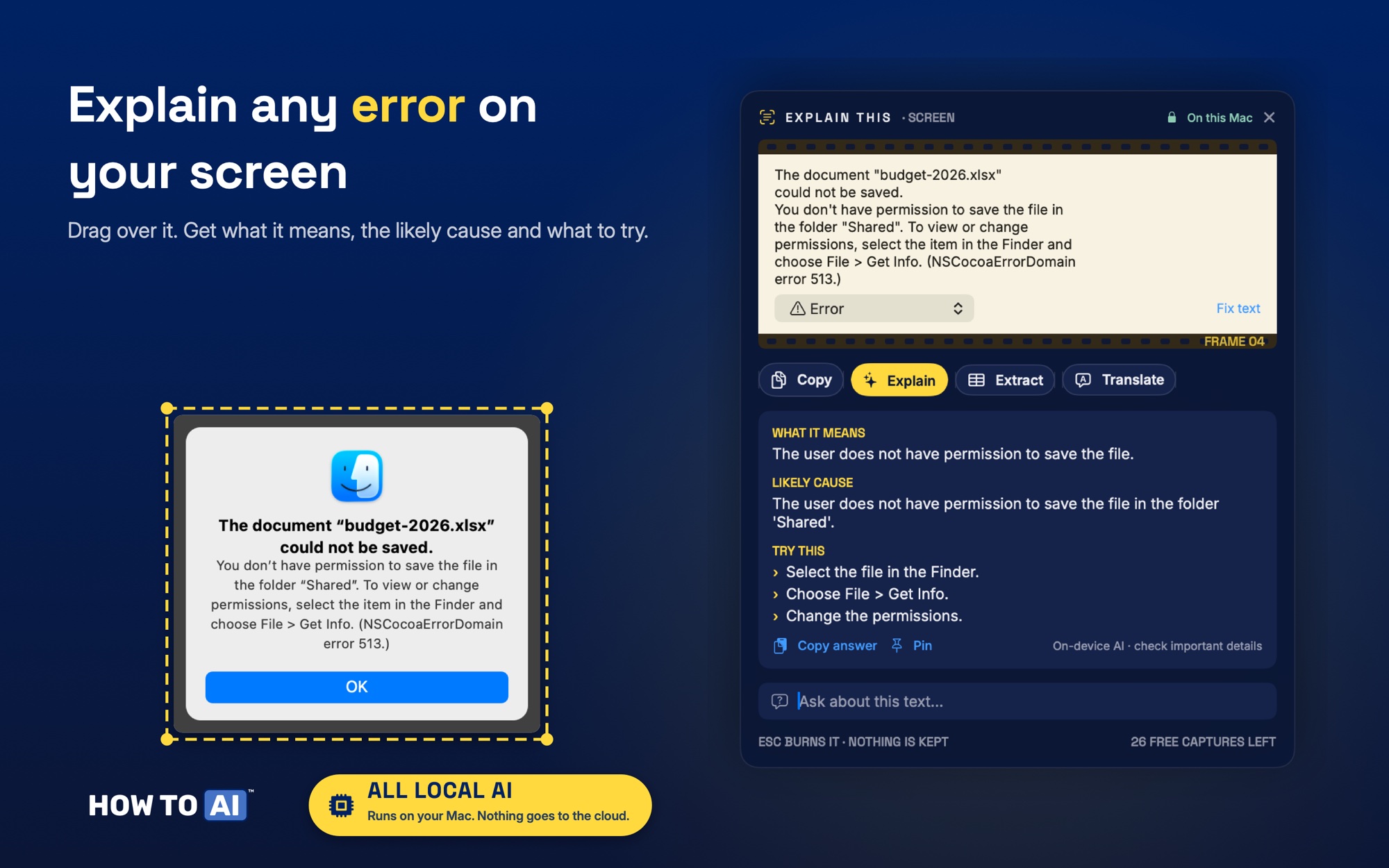
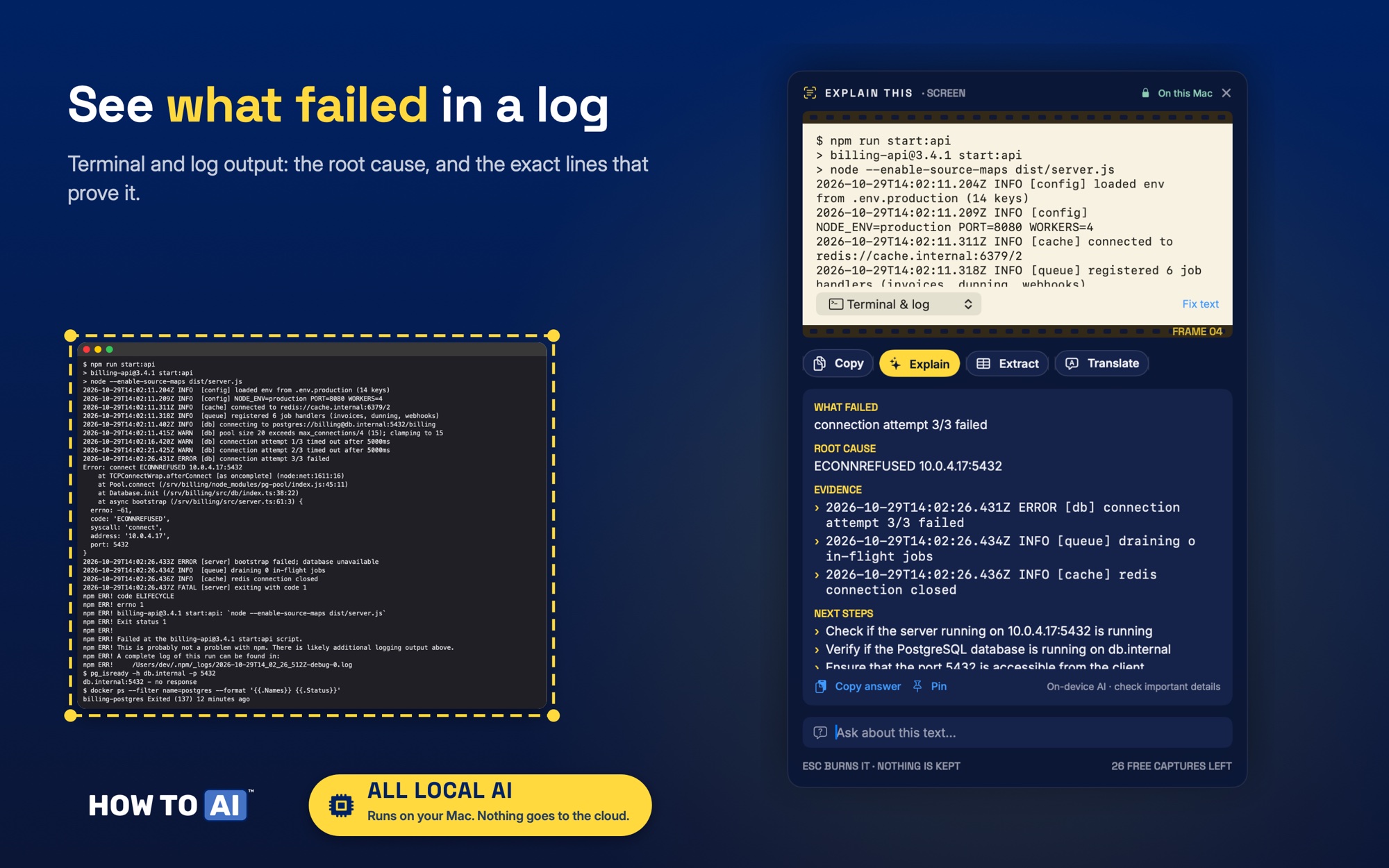
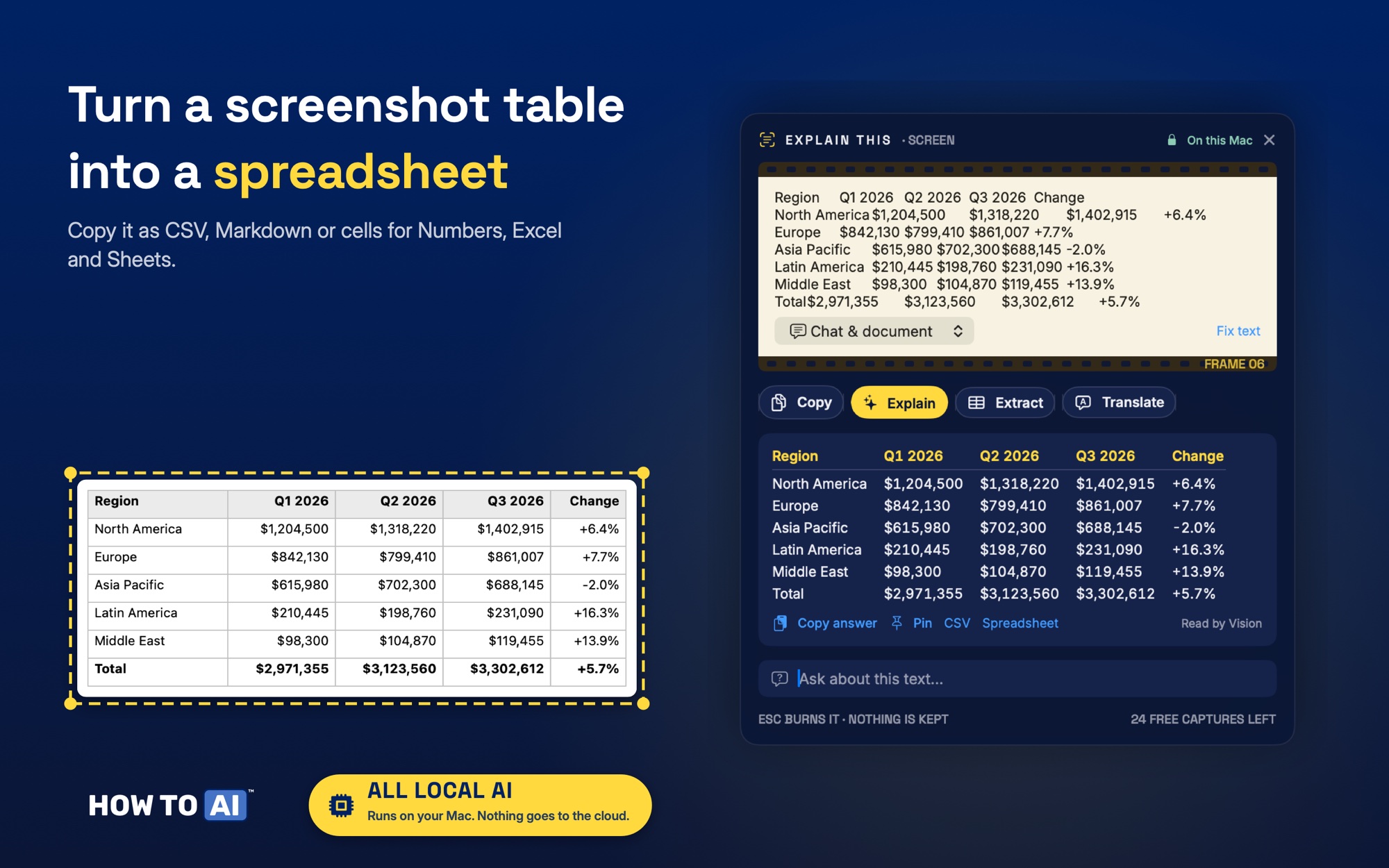
On the left, what's on your screen. On the right, what you get.
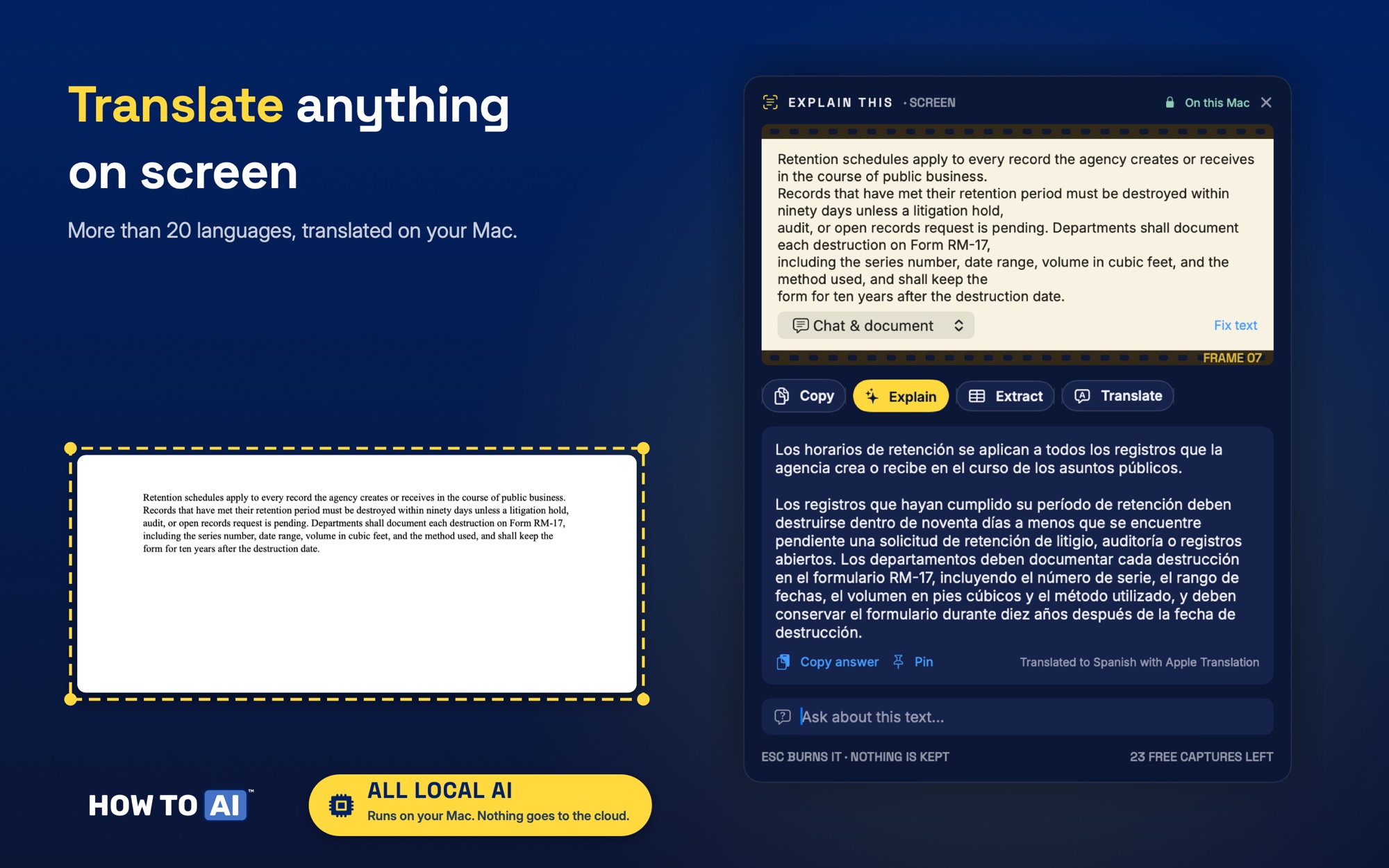
Five ways to use what you capture
Copy
The text, even from images, videos, dialogs and screen shares.
Explain
For a chat or a document: a plain-English version and any to-dos. For an error: what it means and what to try.
Extract
Tables become CSV, Markdown or spreadsheet cells.
Translate
More than 20 languages, on your Mac.
Ask
Type a question about the text you captured.
A capture is one shortcut press. Explaining, extracting, translating or asking about it costs nothing extra.
On this Mac
- Apple's Vision framework reads the text on your Mac. Screen images stay in memory only while they are read and shown, and are never written to disk.
- Explanations and answers come from Apple's on-device AI model, and translation from Apple's on-device Translation framework. No cloud AI, no API keys.
- The app has no network access at all, so it can't send anything. On the App Store: Data Not Collected.
What you need
macOS and Apple Intelligence
macOS 26 or later.
Explain and Ask need a Mac with Apple Intelligence turned on (Apple silicon). Copy, Extract and Translate work on every Mac that runs macOS 26.
Languages
Translation covers more than 20 languages. Each language downloads once, then works offline.
Questions? Setup fixes, purchases and how to reach us are on the support page.
Explain This is a HOW TO // AI app, sold on the Mac App Store as "Image to Text: Explain This" by Blue Ocean Water Inc.