

Here are 20 free copy and paste AI prompts you can use right now in ChatGPT, Claude, Gemini or any other AI chatbot, with no signup. Click Copy on any prompt, paste it into the chat, and replace the parts in square brackets with your own details.
They’re grouped into work, learning, creativity and a few power moves, and each one comes with a line on why it works and what to swap in. The difference between “AI is kind of helpful” and “AI just saved me 3 hours” usually comes down to how you ask, and a good prompt gives the AI context, constraints, and a clear picture of what success looks like.
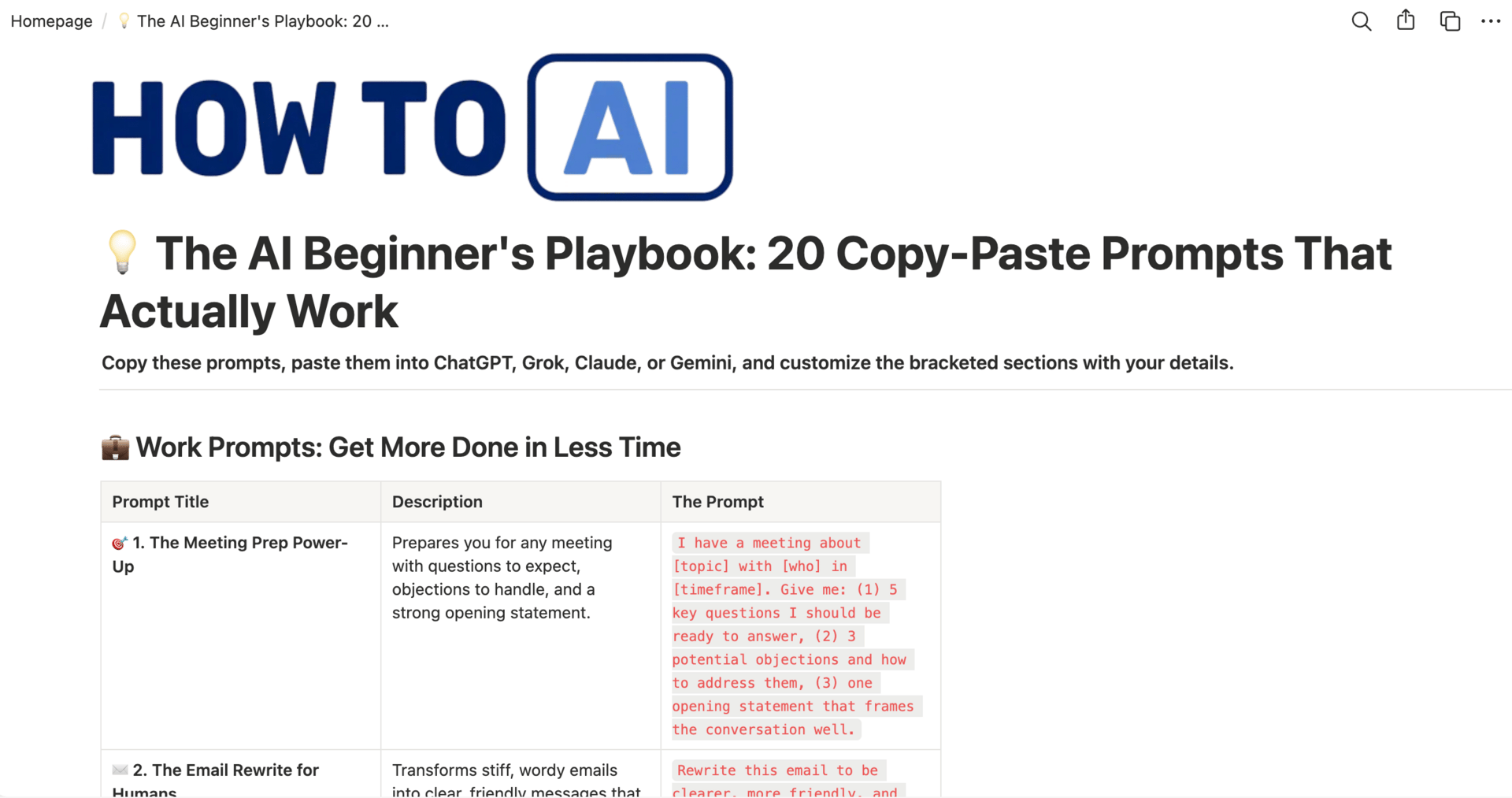
Prefer to keep them all in one place? I’ve also put all 20 prompts in a Notion page you can DUPLICATE into your own Notion workspace (free; it asks for your email once). You can find it and duplicate it here.

How to use these copy-and-paste prompts
- Click Copy on the prompt you want.
- Paste it into ChatGPT, Claude, Gemini or whichever AI chatbot you use.
- Replace every part in square brackets with your details. Where a prompt ends with a colon and a paste-here placeholder, delete the placeholder and paste your email, notes or draft in its place.
- Read the answer, then follow up (“shorter”, “more casual”, “give me two more options”). The first reply is a draft, not the final word.
The more context you add (who it’s for, why it matters, what good looks like), the better the result. Not happy with how a prompt turned out? Paste it into our free AI prompt improver for a sharper version.
On your phone? Tap Copy, open the ChatGPT, Claude or Gemini app, press and hold inside the message box and tap Paste. Fill in the square brackets before you send it; it’s quicker than fixing the answer afterward.
All 20 prompts at a glance
| Prompt | Type | Use it when |
|---|---|---|
| 1. The Meeting Prep Power-Up | Work | A meeting is coming up and you want to walk in prepared |
| 2. The Email Rewrite for Humans | Work | An email sounds stiff, long or unclear |
| 3. The Task Breakdown Blueprint | Work | A big project feels too big to start |
| 4. The “I’m Stuck” Problem Solver | Work | You keep hitting the same obstacle |
| 5. The Meeting Notes Transformer | Work | You have messy notes and need decisions and to-dos |
| 6. The Concept Explainer Ladder | Learning | You need to understand a new term or idea |
| 7. The Research Starting Point | Learning | You’re starting a topic from zero |
| 8. The “Connect the Dots” Prompt | Learning | You’re learning two related subjects |
| 9. The Article Digest | Learning | You need the point of a long article, fast |
| 10. The Practice Problem Generator | Learning | You’re building a skill and need practice |
| 11. The Idea Explosion | Creativity | You need lots of ideas, from safe to bold |
| 12. The Writer’s Block Breaker | Creativity | You’re stuck on a piece of writing |
| 13. The Brainstorm Organizer | Creativity | Your ideas are scattered across notes |
| 14. The “Make It Better” Editor | Creativity | A draft needs specific fixes, not praise |
| 15. The Story Structure Starter | Creativity | You want to tell a story that lands |
| 16. The Template Builder | Power | You do the same task again and again |
| 17. The Feedback Generator | Power | You’re about to share work or pitch an idea |
| 18. The Learning Gap Finder | Power | You know the basics and want to level up |
| 19. The Tone Translator | Power | You need the same message in a different tone |
| 20. The Reality Check | Power | You want honest pushback on a plan |
Work Prompts: Get More Done in Less Time
1. The Meeting Prep Power-Up
I have a meeting about [topic] with [who] in [timeframe]. Give me: (1) 5 key questions I should be ready to answer, (2) 3 potential objections and how to address them, (3) one opening statement that frames the conversation well.Why it works: It forces the AI to think from multiple angles: your preparation, their concerns, and how to start strong. You get a complete prep package, not just generic advice.
Swap in: the meeting topic, who you’re meeting, and when. Want a fuller version? Here’s the prompt I run before every meeting.
2. The Email Rewrite for Humans
Rewrite this email to be clearer, more friendly, and 30% shorter. Keep my main points but make it sound like I’m talking to a colleague, not writing a legal document: [paste email]Why it works: Specific length target, tone direction, and the “colleague” framing prevents corporate speak. You stay professional without sounding like a robot.
Swap in: paste your email after the colon. Change “30% shorter” or the tone to fit. More in how to write better emails with AI.
3. The Task Breakdown Blueprint
I need to [big task/project]. Break this into 8-10 concrete steps with time estimates for each. Flag which steps need input from others and which I can do alone. Put the steps in the order that makes most sense.Why it works: You get an actual project plan, not just a list of vague to-dos. The dependency flagging helps you spot bottlenecks before they happen.
Swap in: the project, plus a deadline if you have one (“…due in three weeks”).
4. The “I’m Stuck” Problem Solver
I’m trying to [goal] but I keep running into [obstacle]. Ask me 5 clarifying questions about the situation, then give me 3 different approaches I could take: one conventional, one creative, one that challenges my assumptions.Why it works: The questions force you to think deeper about your problem. The three-approach framework prevents you from getting locked into one way of thinking.
Swap in: your goal and the obstacle you keep hitting. Answer its 5 questions before it gives you the approaches.
5. The Meeting Notes Transformer
Turn these messy meeting notes into: (1) Key decisions made, (2) Action items with owners, (3) Open questions we need to resolve, (4) One sentence summary I can send to people who weren’t there: [paste notes]Why it works: Converts chaos into structure fast. The “one sentence summary” is clutch for keeping stakeholders in the loop without overwhelming them.
Swap in: paste your notes after the colon. Add “use a table” if you want owners and dates side by side. The full routine: turn your next meeting into action-ready minutes.
Learning Prompts: Actually Understand New Things
6. The Concept Explainer Ladder
Explain [concept/term] three times: (1) Like I’m 10 years old, (2) Like I’m a professional in a different field, (3) Like I’m about to teach this to someone else. Include one analogy for each explanation.Why it works: You get the same idea from three angles: simple, practical, and teaching-ready. The analogies help concepts stick in your brain.
Swap in: the concept or term. Change “a professional in a different field” to your actual field for a sharper analogy.
7. The Research Starting Point
I want to learn about [topic] but don’t know where to start. Give me: (1) The 3 most important things to understand first, (2) 3 common misconceptions people have, (3) 5 questions I should be able to answer after 2 hours of learning.Why it works: Gives you a map before you start wandering. The misconceptions save you from going down wrong paths early.
Swap in: the topic, and change “2 hours” to the time you actually have. More in learn anything faster with AI.
8. The “Connect the Dots” Prompt
I’m learning about [topic A] and [topic B]. Show me 3 unexpected connections between these topics and explain why understanding one helps me understand the other better.Why it works: Builds mental models and helps information stick. Finding connections between ideas is how experts actually think.
Swap in: two subjects you’re learning, like statistics and cooking, or marketing and psychology.
9. The Article Digest
Summarize this article in: (1) One sentence, (2) 5 key points in bullet form, (3) 3 questions it left unanswered, (4) One thing I can apply today: [paste link or text]Why it works: You get multiple levels of detail: skim, scan, or deep dive. The “apply today” piece prevents passive reading syndrome.
Swap in: paste the article text after the colon. A link works only if your AI tool can open the page, so pasting the text is the safer bet.
10. The Practice Problem Generator
I’m learning [skill]. Create 3 practice exercises for me: one easy, one medium, one hard. For each exercise, tell me what I should focus on and what success looks like.Why it works: Turns passive learning into active practice. The difficulty progression helps you level up without getting crushed.
Swap in: the skill, plus your current level (“I’m a complete beginner”) so the difficulty fits.
Creativity Prompts: Make Something From Nothing
11. The Idea Explosion
I need ideas for [type of content/project] about [topic]. Give me 20 ideas: 5 safe and proven, 5 slightly unusual, 5 bold and risky, 5 that combine unexpected elements. One sentence per idea.Why it works: Forces variety across the risk spectrum. You get safe options AND weird ones that might spark something brilliant.
Swap in: what you’re making (posts, gifts, event themes) and the topic. More ideas in turn AI into your brainstorming buddy.
12. The Writer’s Block Breaker
I’m writing about [topic] but I’m stuck. Give me: (1) 5 angles I haven’t considered, (2) 3 opening hooks I could use, (3) One provocative question that challenges conventional thinking about this topic.Why it works: Attacks writer’s block from multiple directions. The provocative question often unlocks your actual point of view.
Swap in: your topic. Add who you’re writing for to get better hooks.
13. The Brainstorm Organizer
I have these random ideas: [paste messy notes]. Organize them into 3-4 logical themes, show me which ideas connect to each other, and tell me which 2-3 ideas have the most potential and why.Why it works: Takes the chaos in your head and makes it navigable. Pattern recognition is where AI actually shines.
Swap in: your messy notes, bullet points or a voice-memo transcript.
14. The “Make It Better” Editor
Here’s my draft: [paste text]. Don’t just tell me it’s good. Give me 5 specific ways to improve it. For each suggestion, show me a before/after example using text from my draft.Why it works: General feedback is useless. Specific before/after examples teach you what “better” actually looks like.
Swap in: paste your draft, and say what it’s for (a cover letter, a blog post) for sharper suggestions. See also use AI as your personal proofreader.
15. The Story Structure Starter
I want to tell a story about [topic/experience]. Help me structure it: (1) What’s the hook that grabs attention? (2) What’s the tension or problem? (3) What’s the turning point? (4) What’s the lesson or insight? Give me one sentence for each.Why it works: Even non-writers can follow this framework. Stories with structure land way better than random rambling.
Swap in: the topic or experience. Add the audience and how long the story should be.
Bonus Power Prompts: Next-Level Moves
16. The Template Builder
Create a reusable template for [task] that includes: (1) The key inputs I need to gather first, (2) Step-by-step process, (3) Common mistakes to avoid, (4) Quality checklist at the end. Make it something I can use over and over.Why it works: Turns one-time help into a repeatable system. You build assets, not just get answers.
Swap in: a task you repeat, like onboarding a client or writing a weekly report.
17. The Feedback Generator
I’m about to share [work/idea] with [audience]. Play devil’s advocate: what are 5 questions or objections they might have? For each one, give me a strong response that addresses the concern without getting defensive.Why it works: Pressure-tests your thinking before you go public. Pre-answering objections makes you look 10x more prepared.
Swap in: the work or idea, and the audience (your boss, a client, a hiring panel).
18. The Learning Gap Finder
I understand [concept] at a basic level. What are the 5 things I’m probably missing that would take me from beginner to intermediate? For each gap, tell me one resource or exercise to close it.Why it works: Shows you exactly what you don’t know yet. Prevents the “I think I get it” plateau.
Swap in: the concept you understand at a basic level.
19. The Tone Translator
Here’s what I want to say: [paste text]. Rewrite it in 3 different tones: (1) Formal and professional, (2) Casual and friendly, (3) Direct and punchy. Same information, different vibes.Why it works: Teaches you how tone shapes perception. Having options lets you match the moment.
Swap in: paste what you want to say after the colon. Name the reader if you know them.
20. The Reality Check
I’m planning to [goal/project]. Be brutally honest: (1) What am I probably underestimating? (2) What could go wrong that I’m not thinking about? (3) What’s one thing I should do differently based on common mistakes people make with this?Why it works: Gets you real talk instead of cheerleading. The best planning includes pessimism with purpose.
Swap in: the goal or project. Add your budget and timeline for more realistic warnings.
How to write your own copy and paste prompt
Every prompt on this page follows the same four-part pattern. Once you see it, you can write your own reusable prompts for the jobs you do every week:
- Context: who you are, who it’s for and why it matters.
- Task: one clear job, such as rewrite, summarize, plan or explain.
- Constraints: length, tone and anything to avoid.
- Format: bullets, a table, numbered steps or three options to choose from.
Here’s the pattern as a fill-in-the-blanks template you can save and reuse: I'm [who you are]. I need [the task] for [who it's for]. Keep it [length, tone, anything to avoid]. Give it to me as [format].
Want more ready-made prompts first? The AI prompts I use most and the job search prompt vault follow the same pattern.
How to Make These Prompts Your Own
Don’t just copy-paste forever. Use these as training wheels. After you use a prompt a few times, notice what works. Maybe you need more detail, less fluff, or a different output format. The best prompts evolve with you. Prompt Refinement 101 shows how to tune them, and the complete guide to AI prompting explains why they work. Start with these, then make them yours!
Your homework: Pick 3 prompts from different sections. Use them this week on real tasks, not practice runs.
Want more? Try 20 prompts I actually reuse, the personalized AI learning path prompts, or talking to AI instead of typing for even better answers. Still typing into AI like it’s a search box? Here’s the fix. Brand new to all this? Start with the complete beginner’s guide to using AI.
And don’t forget to DUPLICATE all of these prompts into your own Notion workspace, here.
Related guides
- The 6 AI Prompts I Use Most (They’re Shorter Than You’d Think)
- The Amplified Prompt Library
- The Complete Guide to AI Prompting (for People Who Aren’t Engineers)
- How to Use AI: A Complete Beginner’s Guide (2026)
- 50 Copy-Paste AI Prompts for Work (Free, No Signup)
Frequently asked questions
What are copy and paste AI prompts?
They are ready-made instructions you paste straight into ChatGPT, Claude, Gemini or another chatbot and use right away, with no prompt-writing skill needed. You paste the prompt, swap in your details, and get a useful result.
How do I use a copy and paste prompt?
Click Copy, paste the prompt into your AI tool's chat box, and replace the parts in square brackets with your own details. Send it, then ask follow-up questions to adjust the answer, such as asking for a shorter or more casual version.
How do I copy and paste a prompt on my phone?
Tap Copy under the prompt, open the ChatGPT, Claude or Gemini app, press and hold inside the message box and tap Paste. Replace the parts in square brackets with your details before you send it.
Do these prompts work in ChatGPT, Claude and Gemini?
Yes. Well-written prompts are mostly tool-agnostic, so the same prompt works across ChatGPT, Claude, Gemini and most modern chatbots. Results vary a little between tools, so if one answer misses, try the same prompt in another.
What do the square brackets in a prompt mean?
Square brackets mark the parts you replace with your own details, like the topic, the audience or the text you want help with. Delete the brackets and type your information in their place before you send the prompt.
Are these AI prompts free?
Yes. You can copy all 20 prompts from this page for free with no signup. If you want them saved in one place, the Notion version is free too; it asks for your email address once.
Is it safe to paste my emails or notes into AI?
Treat it like sharing with an outside service: leave out passwords, account numbers and other people's private details, and follow your employer's AI policy for work material. You can often swap real names for placeholders and still get a useful result.
How can I make a copy-paste prompt work even better?
Add context: who it is for, why it matters and what a good result looks like. If the first answer misses, say what is wrong and ask it to try again; small follow-ups usually beat starting over.
How do I write my own copy and paste prompt?
Use four parts: context (who you are and who it's for), one clear task, constraints such as length and tone, and the format you want back. Save the version that works and swap in new details each time.