
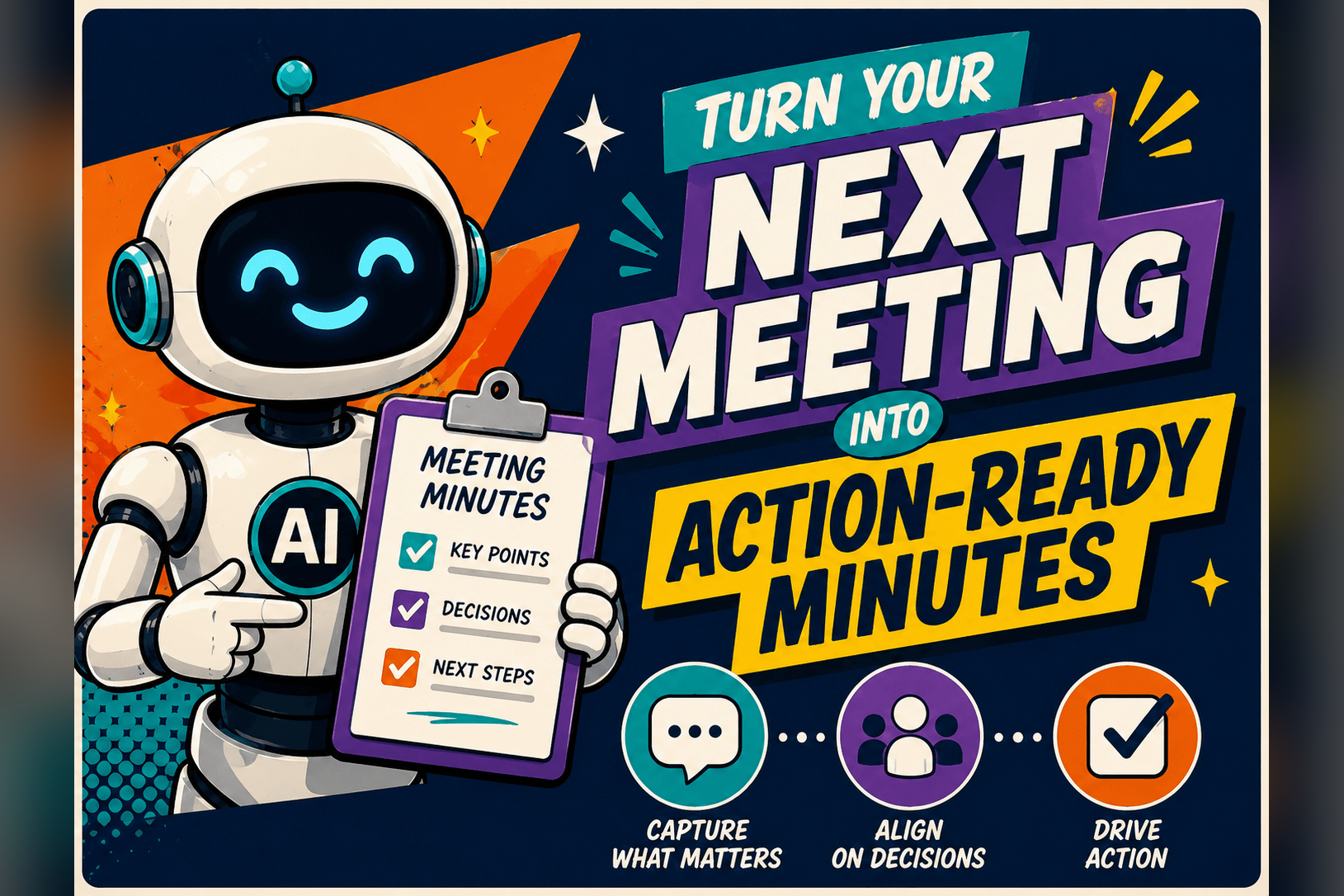
A single, well-structured prompt can turn a 45-minute call transcript into a share-ready minutes summary, with decisions and action owners, in under five minutes.
We’ll put the Role + Task + Format + Tone pattern from Weeks 2 and 3 to work and show how one follow-up line polishes the result.
Grab the transcript.
Export text from Zoom, Meet, or Teams. Paste it into a fresh ChatGPT chat so the model has the full conversation.
❓️ How to grab a transcript, step-by-step
Zoom, Google Meet, and Microsoft Teams all let you download a text transcript after a call. Here’s the quick path in each:
Zoom. Host stops the recording ► Zoom emails you a link ► click Download transcript (.txt).
Google Meet. In the meeting controls, open Activities → Recording & Transcripts ► click Save; the file lands in the meeting organiser’s Drive folder.
Microsoft Teams. Go to the meeting chat ► click the three dots next to the transcript ► choose Download (.docx).
Open the.txt or.docx file, copy the entire text, and paste it into a brand-new ChatGPT chat.
Add a four-part brief.
Type this below the meeting transcript:
Role: You are an operations assistant
Task: Create concise minutes for a 12-person product stand-up that lasted 45 minutes
Form: Return three sections: Summary (≤ 40 words), Decisions (bullets), Action Items (table: owner, task, due date)
Tone: Use plain English, no jargonPress Send. ChatGPT will draft a short recap and a table you can paste directly into Sheets, Notion, or Confluence.
Verify against the brief.
Line-check the draft:
Are all key decisions listed once?
Does every action include an owner and a deadline?
Do numbers and dates match what you heard?
Note any gaps or errors. Don’t jump to correcting the model yet, just take notes.
Refine with one sentence.
Try to narrow your notes to a single line you can feed back to the model; just one clear instruction that fixes the biggest gap without inviting a rewrite.
Something like,
Shorten the Summary to one sentence under 30 words.Add the sprint ticket number to each action item.Replace ‘ASAP’ with specific due dates in MM/DD format.Move the owner column to the first position in the table.Pick a lone sentence as your follow-up prompt and press Send. ChatGPT will update the entire draft while keeping the structure intact.
Save as a template.
Save the refined prompt, tone line and all, in a file called Project Prompt Template. Next time you have to plan an event, just swap in the new variables (audience, size, timeline, theme) and hit Send.
Export and share!
Copy the action-item table, paste it into your team tracker, and tag each owner. The CSV-friendly format means no extra cleanup.
📌 Key takeaway: State Role, Task, Format, and Tone in the first prompt, then use one focused follow-up to close any gaps. A two-step loop turns raw transcripts into minutes you can share without extra editing.
Related guides
- Inbox Zero With AI (In 15–20 Minutes a Day)
- Make Spreadsheets Talk to You with AI
- Use ChatGPT as Your AI Executive Assistant!
- Save 5 Hours at Work — Free AI Kit Inside
- The AI Work Efficiency Kit
Frequently asked questions
How do I turn a meeting transcript into minutes with AI?
Export the text transcript from Zoom, Meet, or Teams and paste the full conversation into a fresh ChatGPT chat. Then add a brief that states the role, task, format, and tone you want. The model drafts a short recap plus an action-item table you can paste straight into Sheets, Notion, or Confluence.
How do I download a transcript from Zoom, Google Meet, or Teams?
In Zoom, the host stops the recording and Zoom emails a link where you click Download transcript. In Google Meet, open Activities then Recording and Transcripts and click Save, and the file lands in the organizer's Drive. In Teams, open the meeting chat, click the three dots next to the transcript, and choose Download.
How do I fix gaps in AI-generated meeting minutes?
First line-check the draft: confirm every decision is listed once, every action has an owner and a deadline, and the numbers and dates match what you heard. Then feed back a single clear instruction that fixes the biggest gap. One focused follow-up updates the draft while keeping the structure intact.
Can I reuse the same prompt for future meetings?
Yes. Save the refined prompt, including the tone line, as a reusable template. Next time you just swap in the new details and send, so you are not rebuilding the instructions from scratch each time.