


Most people open Claude, type a message, and get an answer. That’s it. That’s the whole workflow.
And honestly? It works. Until you find out you’ve been using a Swiss Army knife as a butter knife, and the other blades were there the whole time.
Claude has three distinct modes built for completely different kinds of work. Most people only ever stumble onto one. Here’s what the other 70% looks like.
Mode 1: Chat
Chat is what most people use Claude for.
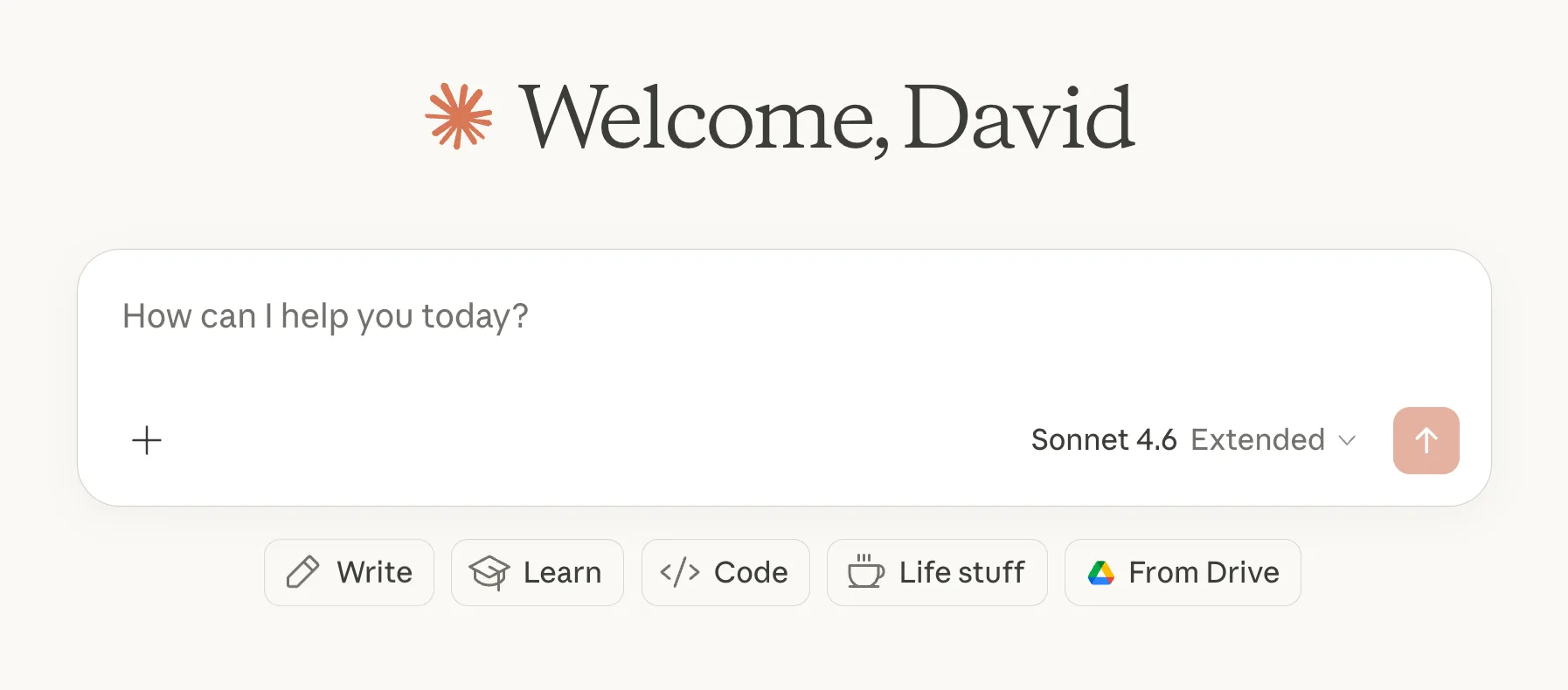
This is the default, open Claude.ai, type a message, get a response. Perfect for quick questions, one-off writing tasks, brainstorming, and anything where you don’t need Claude to remember context between sessions.
Best for: Drafting emails, answering questions, summarizing something you paste in, quick rewrites.
The limitation: Every new chat starts from zero. Claude doesn’t know who you are, what you’re working on, or what you told it last Tuesday. You’re constantly re-briefing Claude on who you are and what you are looking for.
Mode 2: Projects
THIS is where Claude starts to feel like a real assistant
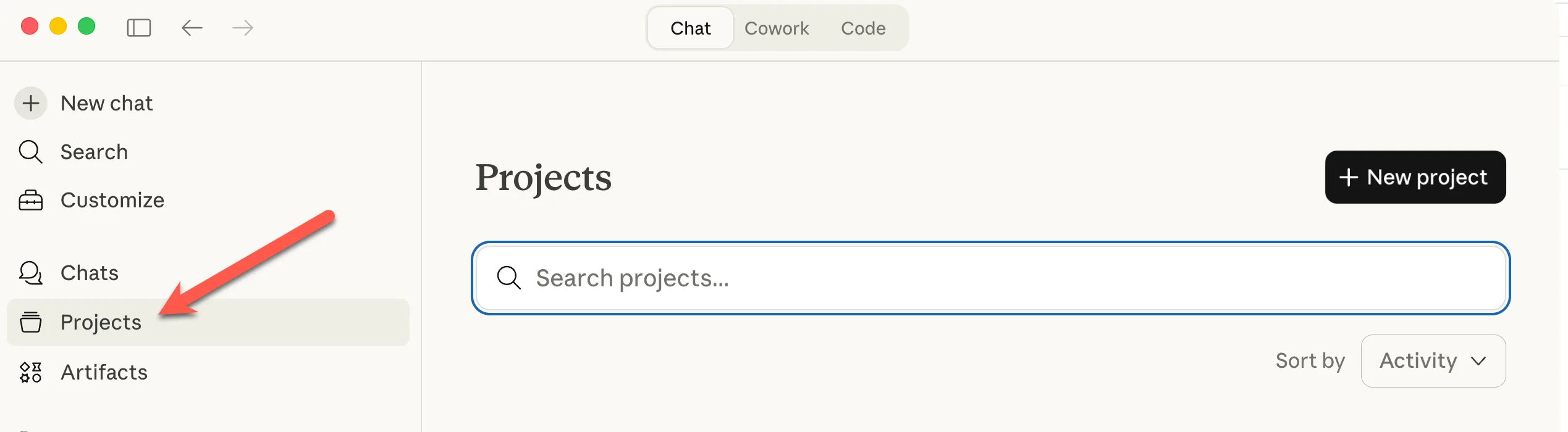
Projects is Claude’s memory layer. You set up a workspace, give it a name, upload key documents, and write a set of custom instructions, and Claude remembers all of it every time you open that project.
No more typing “I’m a marketing manager at a SaaS company” at the start of every chat. No more re-uploading your resume every time you want help with job applications. You set the context once, and it’s always there.
Best for: Ongoing work, job searching, a side project, content creation, anything you return to week after week.
Example: Create a “Job Search” project, upload your resume, and tell Claude your target role and industry. Every conversation in that project starts with Claude already knowing all of it.
Mode 3: Cowork
Cowork is the one almost nobody knows about yet
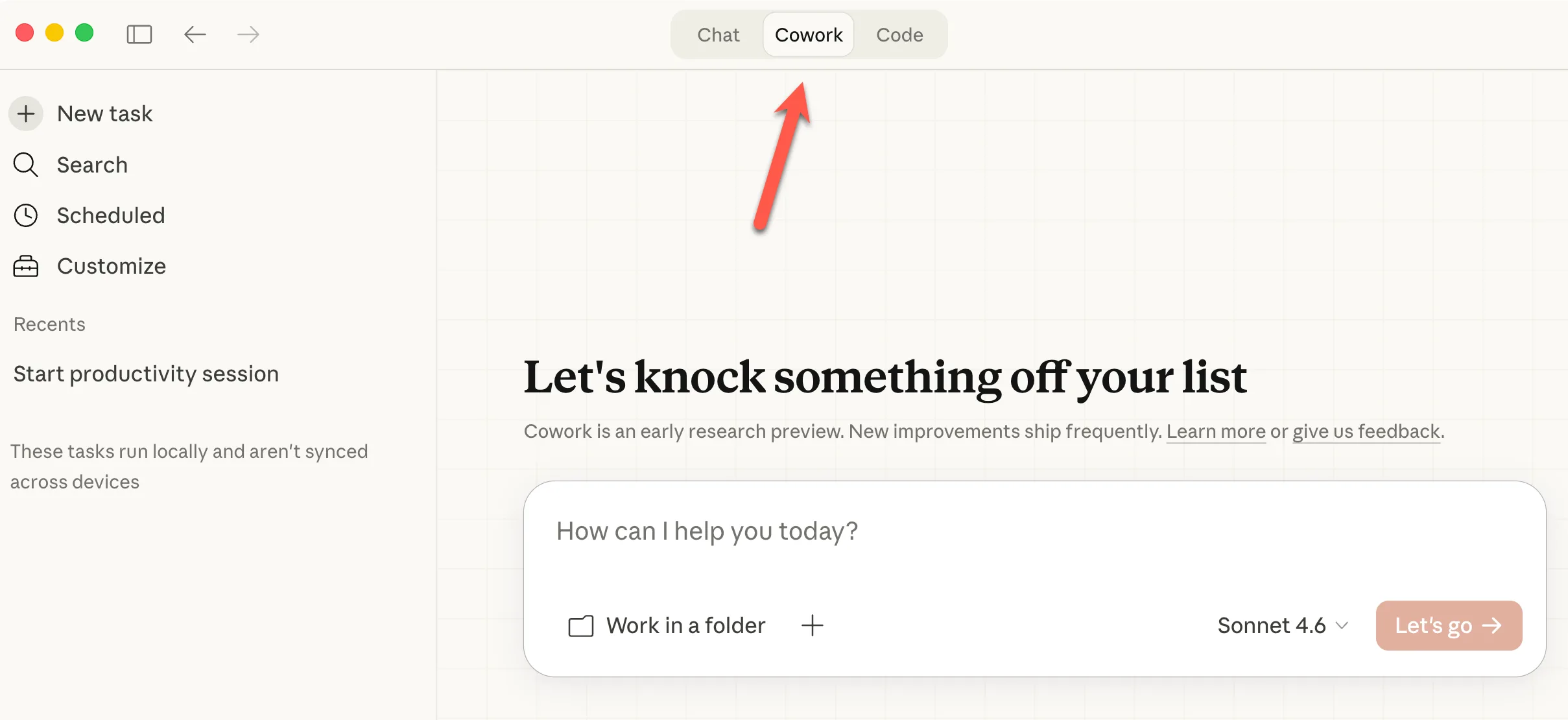
This is where things get genuinely different. Cowork lives in the Claude desktop app (Mac and Windows), and instead of you uploading files to Claude. Claude connects directly to a folder on your computer.
You give it a task, step away, and come back to finished work sitting in your folder. Not a draft in a chat window. Actual files, organized, formatted, and ready to use.
Best for: Multi-step tasks that would normally take you an hour, organizing a folder of documents, pulling together a report from multiple sources, processing a batch of files, building a research summary with real deliverables.
Example: Point Cowork at a folder of meeting notes and say “summarize each one, pull out all action items, and create a single master task list.” Come back in 10 minutes. It’s done.
The key difference: in Chat and Projects, Claude responds. In Cowork, Claude works.
👨💻 Bonus: There’s Actually a 4th Mode. Claude Code
Okay, full transparency, we said three modes. There’s technically a fourth.
Claude Code is the developer version of Cowork. It lives in your terminal (the black command-line window that makes most people nervous) and lets developers hand off entire coding projects to Claude, bug fixes, code migrations, building features from scratch.
You probably don’t need it right now. But here’s why it matters to know about:
Claude Code is what made the tech world sit up and take notice of Claude in the first place. It’s been called the best AI coding tool available, and it’s the reason Anthropic built Cowork, because so many non-developers saw what it could do and wanted the same power for their regular work.
So if you ever decide to learn a little coding, or you work alongside developers, Claude Code is worth knowing exists. And if you’re already using Cowork and loving it, you’re essentially using the same engine under the hood, just with a friendlier interface on top.
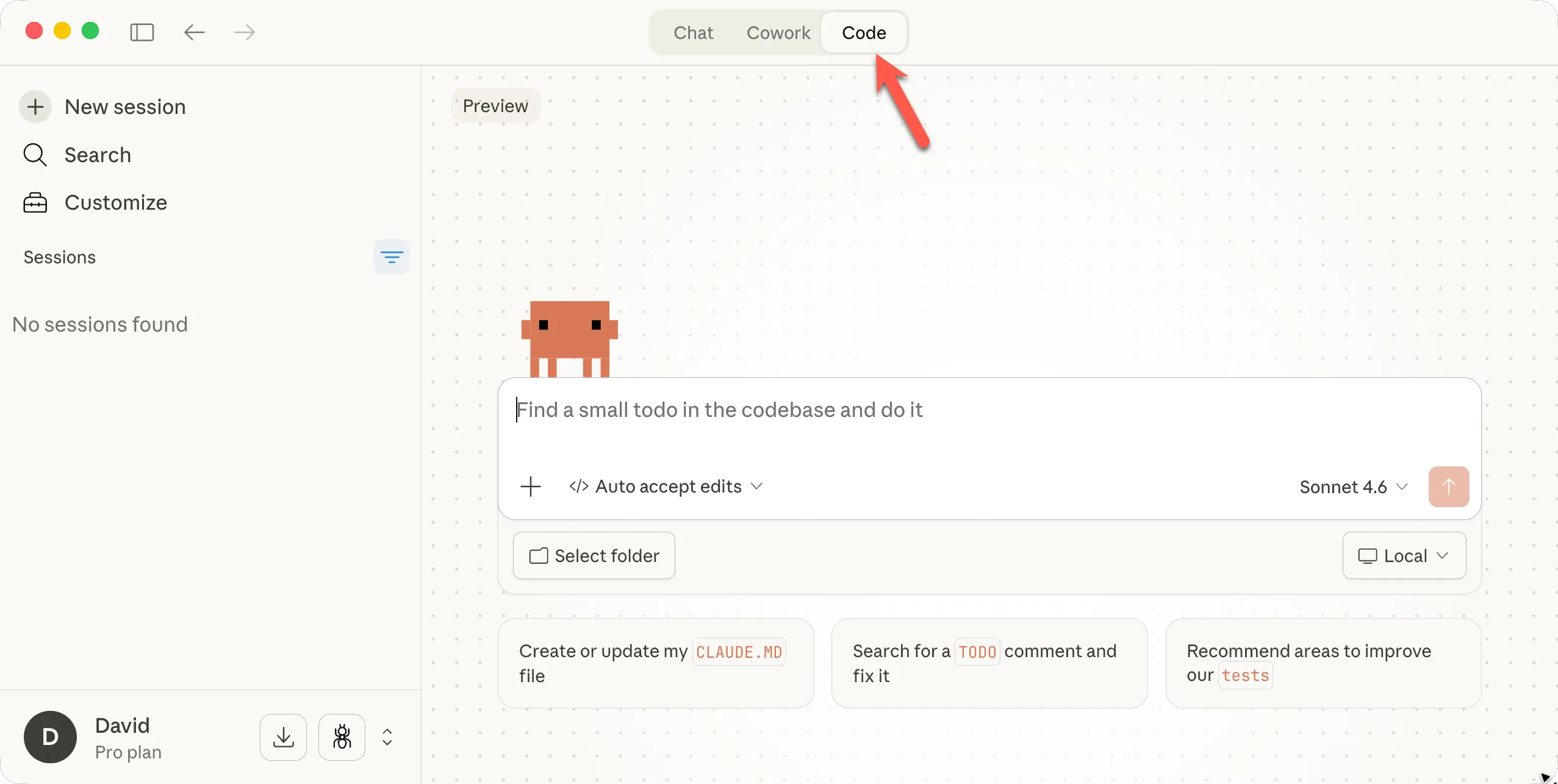
The short version: Chat → Projects → Cowork → Claude Code. You’re building toward something real.
Which One Should You Use?
Quick question or one-off task?        → Chat
Ongoing project you return to?         → Projects
Complex task that needs real files?    → Cowork
Coding projects and tasks? → CodeMost people reading this should start with Projects if you haven’t already, it’s available on all paid Claude plans and takes about 5 minutes to set up. Cowork requires the desktop app and a paid plan, but it’s worth downloading just to try.
The full setup guide, including custom instruction templates, a step-by-step Cowork walkthrough, and a cheat sheet for which mode to use when, is all in this week’s free download 👇
🎁 This week’s free download: The Claude Setup Guide Unlock the full 100%, set up Claude properly in under 30 minutes.
✅ Step-by-step Projects setup, how to create your first project, what to include in custom instructions, and what to upload
✅ Custom instruction templates, copy-paste starting points for 5 common roles (job seeker, writer, small business owner, student, manager)
✅ Cowork quick-start guide, how to download the desktop app and run your first task
✅ Mode cheat sheet, exactly when to use Chat, Projects, and Cowork
✅ 10 starter tasks, real things to try in each mode this week
→ Grab the Claude Setup Guide here (Free Notion template, just duplicate and use)