


I last week’s newsletter, we talked about how, You’re Only Using 30% of Claude AI and the three modes of Claude, and Cowork was the one that raised the most eyebrows.
“That sounds cool, but how do I actually use it?”
Fair. So this week we’re going hands-on. Here’s exactly what Cowork looks like in practice, from setup to finished work, and 10 tasks you can try yourself this week.
First: The 2-Minute Setup
If you haven’t downloaded the Claude desktop app yet, that’s step one.
1. Go to claude.com/download
2. Install the app (Mac or Windows)
3. Sign in with your existing Claude account
4. Click "Cowork" in the left sidebar
5. Click "Add Folder" — create a new folder on your desktop called "Claude Cowork" and point it there
6. That's it. You're ready.One important note before you start: only give Cowork access to folders you’re comfortable with Claude reading and editing. Don’t point it at anything sensitive or irreplaceable without a backup. Start small, that’s the whole point of the dedicated folder.
What Actually Happened When I Tried It
I pointed Cowork at a folder with three months of downloaded PDFs, random screenshots, and half-finished documents I’d been meaning to deal with since January.
My prompt was simple:
“Scan everything in this folder. Create a summary document that lists each file, what it contains in one sentence, and whether I should keep, archive, or delete it. Don’t move anything yet, just give me the list.”
Here’s my actual output from Claude Cowork after just a few minutes-
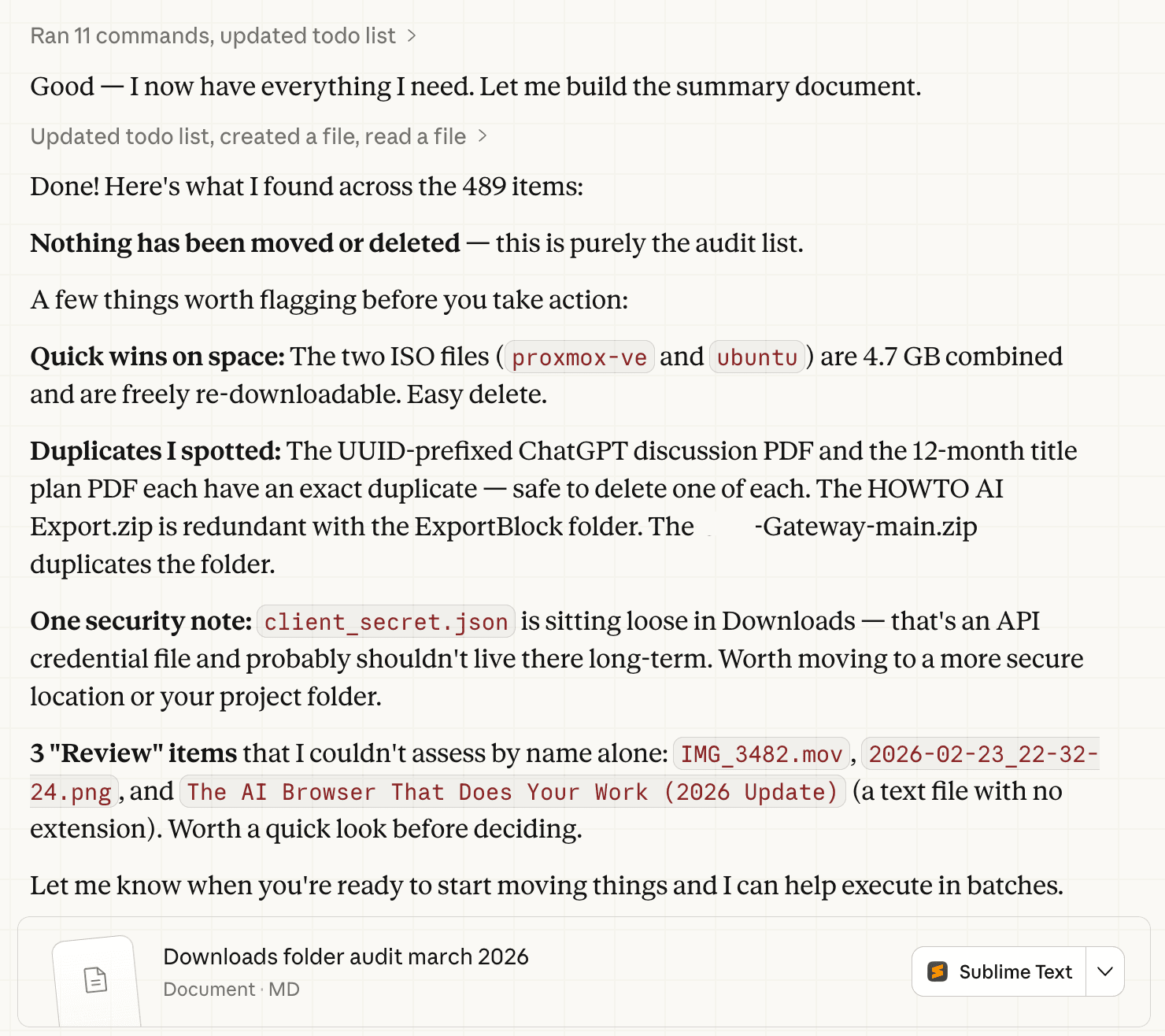
Upon opening the clean markdown doc in the folder, I found that it had analyzed, categorized, and made a recommendation for every file and folder. It’s many pages long but here’s a snippet from the start and end-
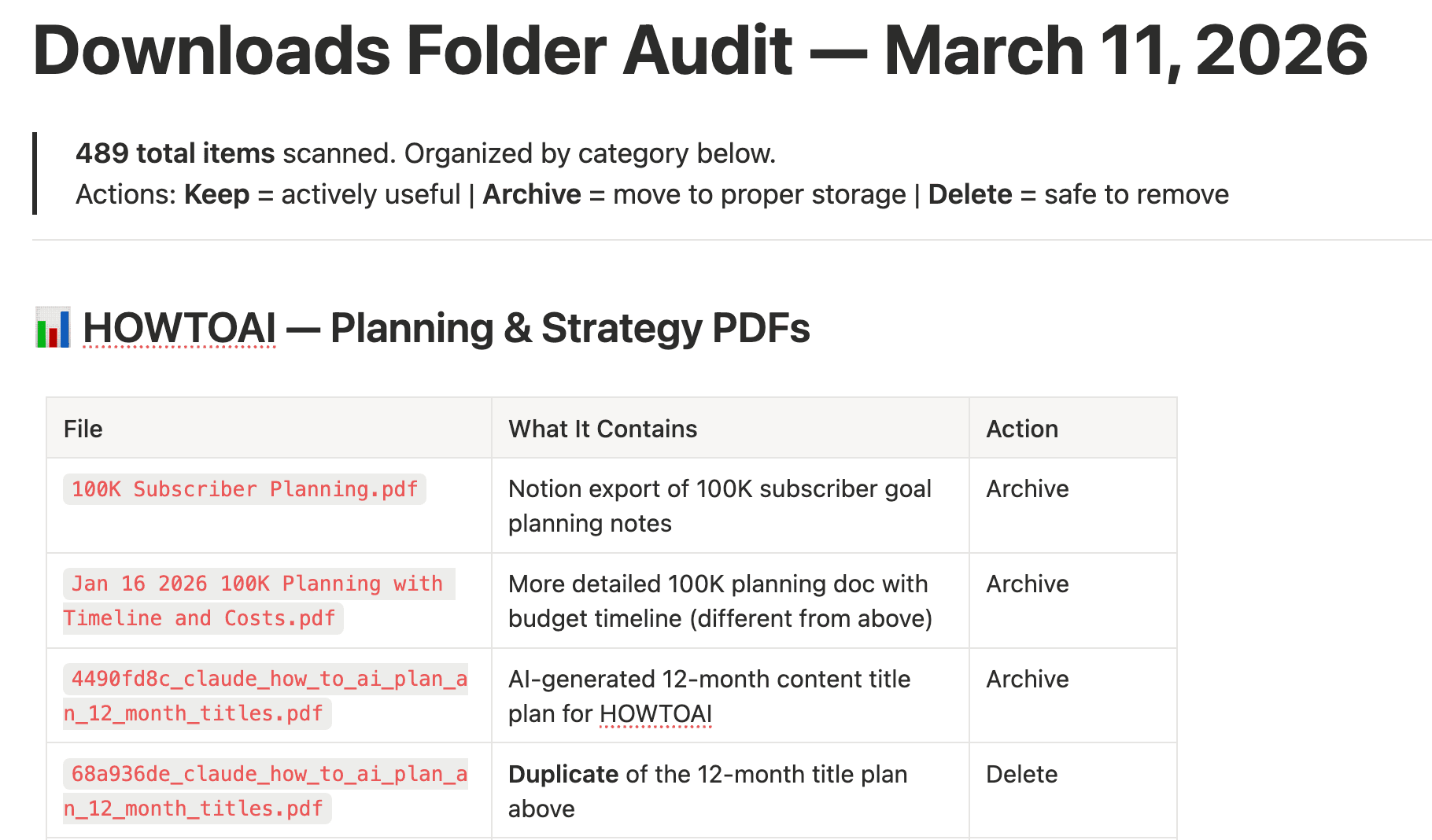
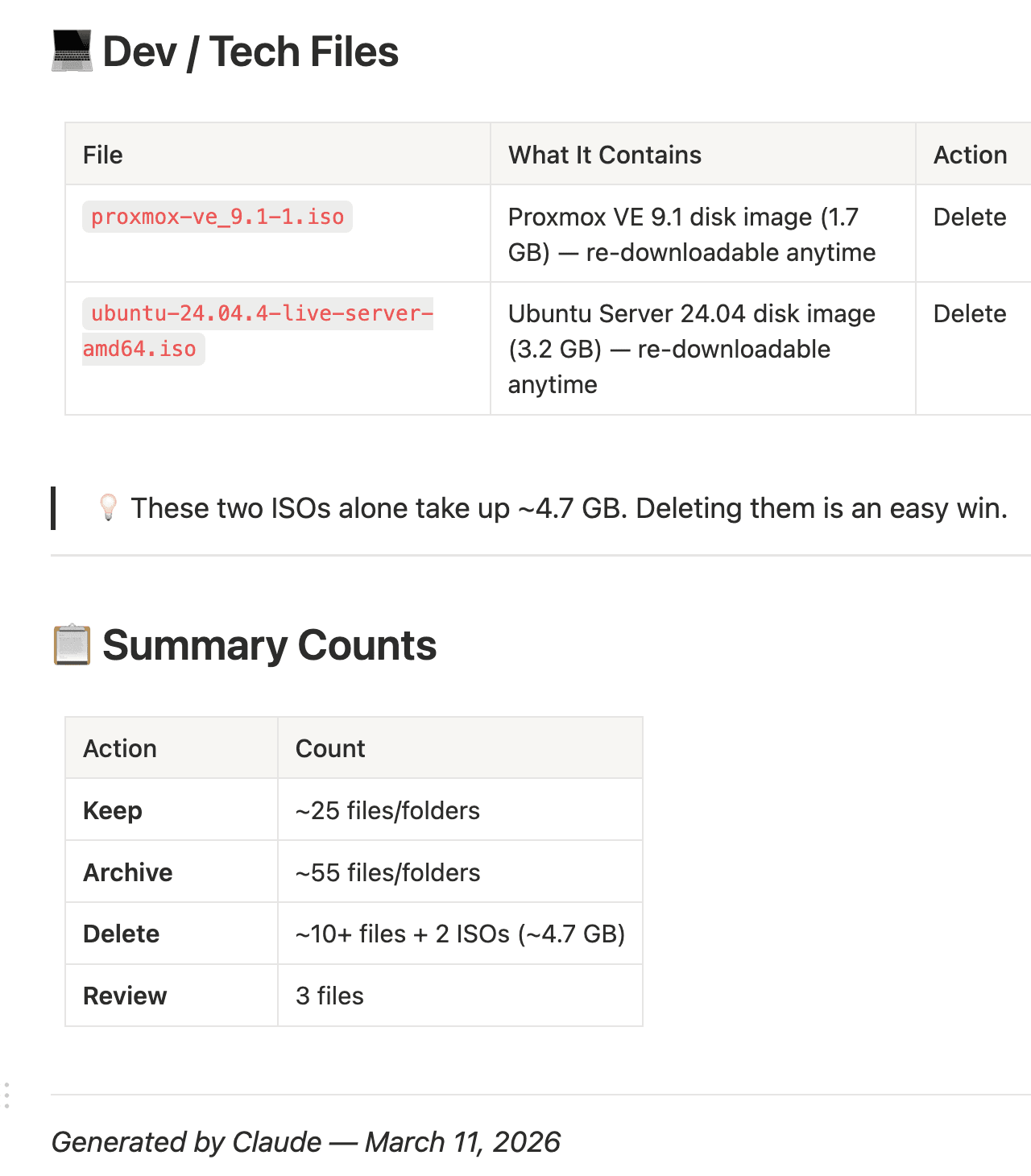
What would have taken me 45 minutes of clicking around took Claude about 3.
That’s the whole point. You describe the outcome. Claude makes a plan, shows it to you, and executes it. You can watch it work in real time or step away and come back to finished files.
And, yes, I can tell Claude to just delete every file and folder that it recommended deleting OR, even better, maybe tell Claude to archive all of the items it recommended deleting and put them in a folder for your review (before they are deleted).
The Key Mental Shift
Here’s what changes when you start using Cowork well:
You stop thinking “what can I ask Claude?” and start thinking “what task am I about to do manually that I could just hand off?”
That’s it. That’s the whole skill.
💬 “You don’t give Cowork prompts. You give it outcomes.”
Anytime you find yourself about to spend 30+ minutes on something repetitive, structured, or file-heavy, that’s a Cowork task. The 10 tasks in this week’s download are your cheat sheet for spotting those moments.
🎁 This week’s free download: 10 Cowork Tasks to Try This Week
Copy-paste prompts for 10 real tasks, organized by use case, with a “what to expect” note for each one.
✅ File organization prompts
✅ Document summarization tasks
✅ Research and report building
✅ Content creation workflows
✅ Data extraction from messy files
→ Grab the 10 Cowork Tasks here (Free Notion template, just duplicate and use)
🎯 Try this today: Create a “Claude Cowork” folder on your desktop, drop 3-5 files in it, and use one of the prompts from the template.
Related guides
- the part of Claude most people never find
- the AI tool stack I actually use
- ChatGPT Atlas was discontinued: what to use instead
- What to Delegate to AI: The 3 Tasks I Quit Doing Myself
- ChatGPT vs Claude vs Gemini: Which AI Should You Use in 2026?
Frequently asked questions
What is Claude Cowork and how do I set it up?
Cowork is a mode in the Claude desktop app that can read and edit files in a folder you point it at. Setup takes about two minutes: download the app from claude.com/download, sign in, click Cowork in the left sidebar, click Add Folder, and point it at a new folder on your desktop. Start with a dedicated folder rather than anything sensitive.
Is it safe to give Claude Cowork access to my files?
Only point Cowork at folders you're comfortable with Claude reading and editing, and keep a backup of anything irreplaceable. Starting with a small, dedicated folder is the safer approach. You can also tell Claude to archive files into a review folder instead of deleting them outright, so nothing disappears without your say-so.
What can Claude Cowork actually do with a messy folder of files?
In the post, Claude scanned a folder of three months of PDFs, screenshots, and half-finished documents and produced a markdown summary listing each file, what it contained in one sentence, and whether to keep, archive, or delete it, without moving anything. What would have taken about 45 minutes of manual clicking took Claude roughly three.
How is using Cowork different from regular AI prompting?
The mental shift is that you give Cowork outcomes, not prompts. Instead of asking 'what can I ask Claude?', you describe the result you want and let it make a plan, show it to you, and execute. A good rule of thumb: anytime you're about to spend 30-plus minutes on something repetitive, structured, or file-heavy, that's a Cowork task.