

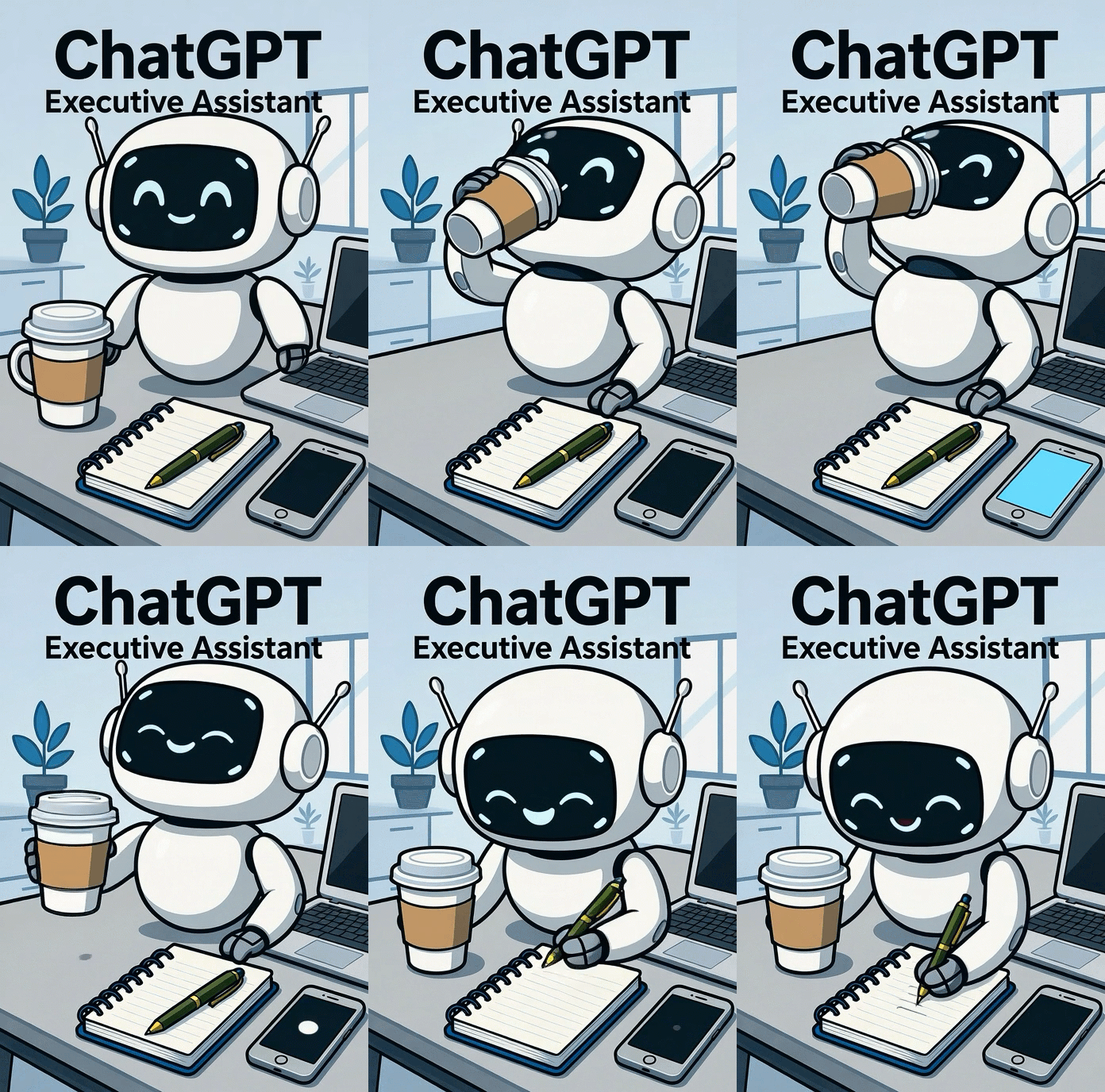
With the right setup, ChatGPT can function as more than a chatbot; it can become your executive assistant for scheduling, research, writing, and task management. This guide walks through how to give ChatGPT structure, context, and the right tools so it starts working with you, not just responding to you.
Think of it as setting up an all‑in‑one sidekick that can draft emails, summarize meetings, organize notes, and remind you of next steps across your projects.
Words of Caution
Before entrusting ChatGPT with your daily workflow, consider a few key points.
First: Privacy and data handling. Anything you share is stored in OpenAI’s cloud. Avoid pasting in sensitive client or financial data unless you’re in an enterprise workspace with proper privacy controls.
Second: Context resets. Regular chats don’t retain memory between sessions by default. If you want persistent recall, remembering your projects, contacts, or preferences, you’ll need to enable custom instructions or memory (rolling out to Pro and Business users).
Third: Guard against automation overreach. While ChatGPT plugins and file tools can perform actions like searching the web, scheduling, or sending emails, always double‑check before allowing third‑party tools to act on your behalf. The assistant works for you, but you’re still the pilot.
3 Simple Steps to Get Started
Step 1: Set your “assistant profile”
Open ChatGPT and go to Settings → Custom Instructions.
Here’s where you define two crucial things:
<insert-prompt>

You are my personal AI assistant.

Remember my style — friendly, concise, and professional.
Keep replies under 150 words and use clear bullet points.
Flag missing details before acting, and end each message with one actionable next step.

</insert-prompt>This becomes your default voice and workflow across all chats, no need to re-explain every time.
Step 2: Connect your daily tools
If you’re using ChatGPT Plus or higher, open the Explore GPTs tab to find integrations that match how you work:
- Calendar & scheduling: link through Zapier or a Google Calendar GPT.
- Docs & notes: connect Drive, Notion, or Slack exports for meeting summaries.
- Email prep: use Gmail or Outlook GPTs to draft and rephrase messages before sending.
- Research & writing: enable the built‑in browser and file upload tools so the assistant can pull live data or analyze PDFs.
Each connection expands what your “assistant” can do, from auto‑summarizing articles to drafting polished memos.
To make it even more powerful, make sure you consider adding “Connectors” to the multitude of applications that you use on a daily basis.
 |
Step 3: Build your daily flow
Now that the groundwork’s set, train ChatGPT by using it the same way you’d delegate to a real assistant.
Try:
- “Plan my next week’s schedule based on this calendar export.”
- “Summarize this meeting transcript into 3 action items, each per attendee.”
- “Draft a client recap email in my tone, friendly but concise.”
- “Create a checklist for launching our new product page.”
You’ll start noticing patterns: ChatGPT remembers the structure you like, asks clarifying questions, and delivers output faster as it learns your preferences.
📌 Key takeaway: ChatGPT isn’t just a place to ask questions; it’s a workspace that learns how you operate. Treat it like a digital team member: define its role, give it tools, and supervise its work.
Persistent context is the next frontier. Whether you’re using custom instructions or Company Knowledge, decide what your assistant should remember, for how long, and why. The power is in setting boundaries that make context genuinely useful.
For more information on this, checkout Work smarter with your company knowledge in ChatGPT

